Use the toolbox to draw the rectangle and add text
The toolbox helps you create, shape, color, and edit graphics from a set of flyouts and buttons.
In the procedure below, you will begin to create a name tag by using the rectangle, text, and shape tools.
Create a rectangle
- In the toolbox, click the Rectangle tool
 .
.
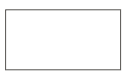
- On the drawing page, drag to draw a rectangle to the approximate size below.
- In the toolbox, click the Pick tool
 .
.
- Point to the X in the middle of the rectangle,
and drag upward to move the rectangle.
Round the rectangle's corners
- Ensure that the rectangle is selected.
- In the toolbox, open the Shape edit flyout, and click the Shape tool
 .
.
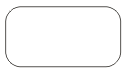
- Select one of the corners of the rectangle, and drag inward.
Click here for a demonstration of rounding the corners of a rectangle.
Create text for your name
You will add your name to the rounded rectangle. Later, you will change the name's font style and size.
- In the toolbox, click the Text tool
 .
.
- Click anywhere on the drawing page, and type your name.
- Click the Pick tool, and drag the text to the center of the rectangle. Later, you will center the text in the rectangle more precisely.

Next, you will change the outline width of the rectangle by using another CorelDRAW® 10 tool: the property bar.
 Continue