Use a toolbar to modify the text
In addition to the toolbox and property bars, you will probably use toolbars quite often. Toolbars are similar to property bars: they contain groups of buttons and icons that relate to specific kinds of tasks. You can decide which toolbars you want to display on the screen.
In the procedures below, you will change the font style and size of your text by using the Text toolbar, and you will center the text inside the rectangle.
Change the font size and style
- Click Window menu
 ToolbarsMore toolbars.
- In the list of categories, double-click Customization, Command bars.
- Enable the Text check box.
- Click OK.
- Click your name.
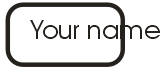
- From the Font size list box
 , choose 48 pt on the Text toolbar. The font size changes.
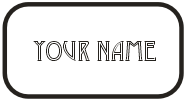
- From the Font list box
 , choose a font. The font style changes.
- If you need to increase or decrease the size of the rectangle to accommodate the text, click the object and drag one of the corner handles to the desired size. You can now center the text in the rectangle.
Click here for a demonstration of increasing an object's size.
Center the rectangle
- Click the Pick tool, and select the rectangle.
- Click Arrange menu Align and distribute.
- Click the Align tab.
- Enable the Center of page check box.
- Click OK.
Center the text in the rectangle
- Click the Pick tool, and select the text box.
- Click Arrange menu Align and distribute.
- Click the Align tab.
- Enable the Center of page check box.
- Click OK.
Next, you will change the fill properties of the rectangle by using a Docker window.
 Continue