CorelDRAW Graphics Suite X5 makes it easier than ever to achieve accurate color representation. Whether you’re importing a client’s mockup, working with previous designs, or sending a project to a print shop or manufacturing facility, you can be certain that your colors are true.
(New)
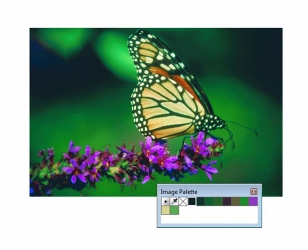
With both CorelDRAW X5 and Corel PHOTO-PAINT X5, a custom color palette is automatically created on the fly for each design project. The palette is saved with the file, which gives you quick access to this project’s colors in the future.
A custom color palette is created on the fly for each design project.
(New)
For CorelDRAW Graphics Suite X5, the color management engine has been completely redesigned. The new Default color management settings dialog box lets you set application color policies to help you achieve accurate color representation while providing greater control for advanced users.
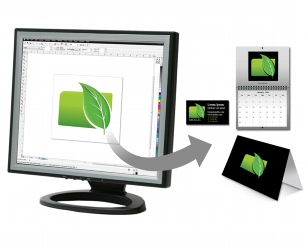
CorelDRAW Graphics Suite X5 features a completely redesigned color management engine.
(New)
The Document color settings dialog box lets you adjust color settings that apply only to the current document.
(New)
While continuing to support RGB, CMYK, and grayscale objects within the same document, CorelDRAW X5 provides a new Primary color mode setting, which governs the default color mode on export and the default palette colors (RGB or CMYK).
(New and enhanced)
All color proof settings are grouped within a single docker, which lets you save presets and prepare artwork for various output devices more efficiently. The docker helps you save time by providing a list of output devices which you can choose from to preview the output. When seeking approval from clients, you can also easily export soft proofs and print hard proofs from the docker.
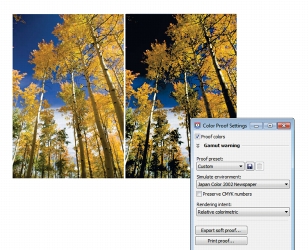
With the Color proof settings docker, you can proof your document as you go.
(New)
The addition of the Eyedropper tool to various color dialog boxes lets you conveniently sample and match colors from a document without closing the dialog box. The Eyedropper tool is also available on color palettes, as well as in color pickers on the property bar.
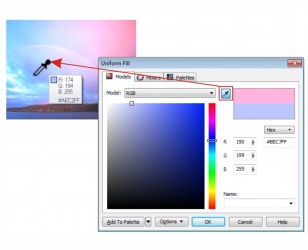
You can quickly and easily sample colors from a document.
(Enhanced)
When you sample color with the Eyedropper tool in CorelDRAW, the Apply color mode is automatically activated so that you can immediately apply the sampled color to another object. You can also drag a color directly from one object to another.
(Enhanced)
The suite now provides multiple options for viewing hexadecimal (hex) color values and lets you choose colors by using their hex value. Web designers often specify colors in standard hex format, which ensures consistent color representation. With CorelDRAW X5, you can view hex values in the Uniform fill dialog box, in the Eyedropper tooltip, in the Color docker, and on the status bar. With Corel PHOTO-PAINT X5, hex values appear in the Eyedropper tooltip, in the Info docker, and on the status bar.

|
Copyright 2010 Corel Corporation. All rights reserved.