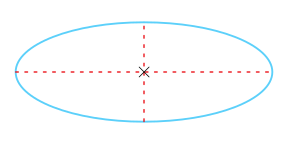
To draw an ellipse or a circle
To convert a curve to an ellipse
| To draw an ellipse or a circle |

|
| • | In the toolbox, click the circle or ellipse tool you want to use. |
|
Click the 3-point circle tool
 . Drag to specify the centerline of the circle, move the pointer, and click to specify the third point. . Drag to specify the centerline of the circle, move the pointer, and click to specify the third point. |
|
|
Click the Center-point circle tool
 . Click where you want to place the center, drag until the circle is the size you want, and release the mouse button. . Click where you want to place the center, drag until the circle is the size you want, and release the mouse button. |
|
|
Click the Center-radius circle tool
 . In the Circle Radius box on the property bar, type a value for the radius. Click where you want to place the center point. . In the Circle Radius box on the property bar, type a value for the radius. Click where you want to place the center point. |
|
|
Click the 2-point ellipse tool
 . Drag diagonally until the ellipse is the size you want, and release the mouse button. . Drag diagonally until the ellipse is the size you want, and release the mouse button. |
|
|
Click the 3-point ellipse tool
 . Drag to specify the centerline of the ellipse, and release the mouse button. Move the pointer until the ellipse is the size and shape you want, and click. . Drag to specify the centerline of the ellipse, and release the mouse button. Move the pointer until the ellipse is the size and shape you want, and click. |
When you draw a circle, holding down the constrain key while dragging constrains the shape to the current constrain angle. See Constrain keys for more information. Holding down the constrain key while drawing an ellipse constrains the shape to a circle.
You can draw a two-point or three-point ellipse from its center outward by holding down the Shift key as you drag (if the constrain key is Ctrl).
| To convert a curve to an ellipse |
|
| 1 . | Select the curve object to convert. |
| 2 . | Click Object  Convert to ellipse. Convert to ellipse. |
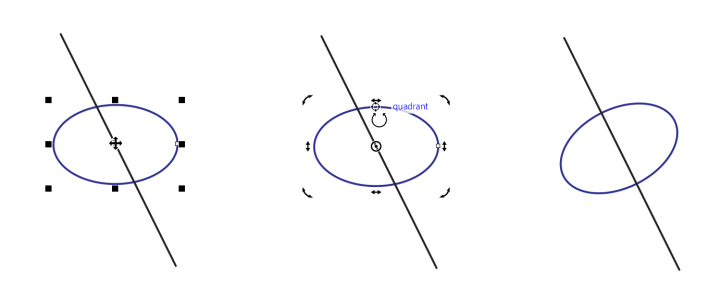
| To align an ellipse to a line |
|
| 1 . | Using the Pick tool  , drag the ellipse by its center point and snap its center to the line. , drag the ellipse by its center point and snap its center to the line. |
| 2 . | Click the ellipse to display the rotation handles. |
| 3 . | Select the quadrant node that is closest to the line, and move it until it snaps to the line. |
| To move an ellipse along its thrust axis |
|
| • | Using the Pick tool , drag the ellipse by its center while holding down W. |
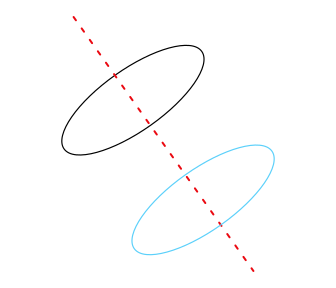
Moving an ellipse along its thrust axis.
| To draw an arc or a wedge |
|
| • | In the toolbox, click the circle or ellipse tool you want to use. |
|
Click the Arc button
 on the property bar. Drag in the drawing window until the arc is the shape you want. on the property bar. Drag in the drawing window until the arc is the shape you want. |
|
|
Click the Pie button
 on the property bar. Drag in the drawing window until the wedge is the shape you want. on the property bar. Drag in the drawing window until the wedge is the shape you want. |
When you draw an arc, the ellipse or circle must have an outline.
You can change the direction of a selected arc or a wedge by clicking the Geometric properties button  on the property bar and clicking Change direction button in the Properties docker.


