
To draw a rectangle or square by dragging diagonally
To draw a rectangle or square with rounded, scalloped, or chamfered corners
To specify the default corner size for drawing rectangles and squares
Corel DESIGNER lets you draw rectangles and squares. You can draw a rectangle or square by dragging diagonally with the 2-point rectangle tool or by specifying the width and height with the 3-point rectangle tool. The 3-point rectangle tool lets you quickly draw rectangles at an angle.
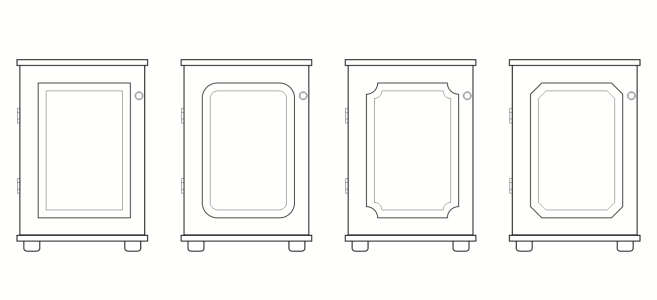
Understanding rounded, scalloped, and chamfered corners
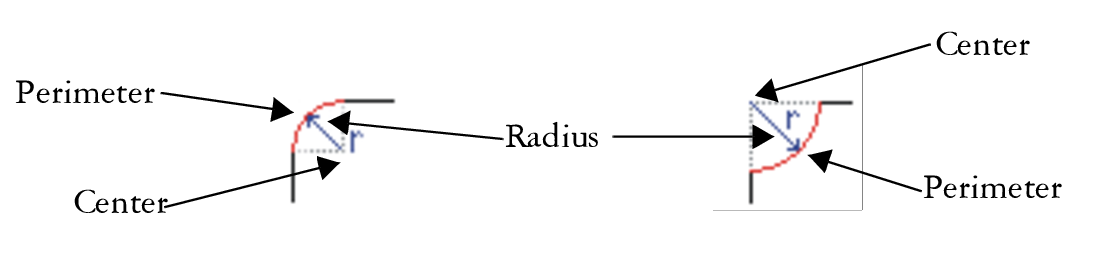
From left to right, you can see the radius of a rounded corner and the radius of a scalloped corner.
For more information about modifying the corners of curve objects, such as lines, text, or bitmaps, see Fillet, scallop, and chamfer corners.
| To draw a rectangle or square by dragging diagonally |

|
|
In the toolbox, click the Rectangle tool
 . Drag in the drawing window until the rectangle is the size you want. . Drag in the drawing window until the rectangle is the size you want. |
|
|
In the toolbox, click the Rectangle tool
. Hold down Ctrl, and drag in the drawing window until the square is the size you want. |
You can draw a rectangle from its center outward by holding down Shift as you drag. You can also draw a square from its center outward by holding down Shift + Ctrl as you drag.
| To draw a 3-point rectangle |
|
| 1 . | In the toolbox, click the 3-point rectangle tool  . . |
| 2 . | In the drawing window, point to where you want to start the rectangle, drag to draw the width, and release the mouse button. |
| 3 . | Move the pointer to draw the height, and click. |
To adjust the size of the rectangle, type values in the Object size boxes on the Transform toolbar. To open the Transform toolbar, click View  Toolbars Transform. Toolbars Transform. |
To constrain the angle of the baseline to a preset increment, known as constrain angle, hold down Ctrl as you drag. For information about changing the constrain angle, see To constrain an object while drawing or editing.
| To draw a rectangle or square with rounded, scalloped, or chamfered corners |
|
| 1 . | Click a rectangle or square. |
| 2 . | Click one of the following buttons on the property bar: |
| • | Round corner  — produces a curved corner — produces a curved corner |
| • | Scalloped corner  — replaces a corner with an edge that has a curved notch — replaces a corner with an edge that has a curved notch |
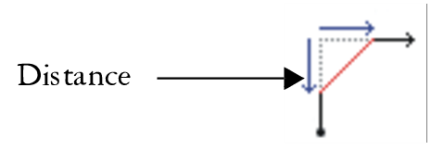
| • | Chamfered corner  — replaces a corner with a flat edge — replaces a corner with a flat edge |
| 3 . | Type values in the Corner radius boxes on the property bar. |
| 4 . | Press Enter. |
|
Click the Edit corners together button
 on the property bar. on the property bar. |
|
|
Click the Relative corner scaling button
 on the property bar. on the property bar. |
You can also modify the corners of a selected rectangle or square by clicking the Shape tool  , clicking a corner option button on the property bar, and then dragging a corner node toward the shape’s center. If you want to modify only one corner, hold down Ctrl as you drag.
| To specify the default corner size for drawing rectangles and squares |
|
| 1 . | Click Tools Options Tools. |
| 2 . | In the Tool Options dialog box, click Rectangle. |
| 3 . | In the Rectangle corners area, type values in the boxes. |
|
Click the Edit corners together button
. |
|
|
Disable the Scale corners check box.
|


