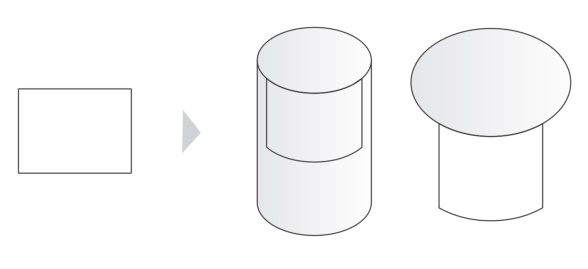
Wrapping a rectangle to a cylinder and an ellipse
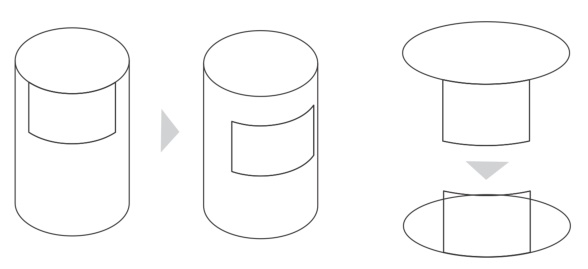
You can adjust the position of the wrapped object on the cylinder (left) or the ellipse (right)
The Wrap to Cylinder/Ellipse feature makes it easy to perform tasks such as applying labels to objects. Plus, you can use this feature to create hollow-looking or extruded objects. This is done by wrapping an object to a cylinder or an ellipse and creating a duplicate object. You can set the duplicate offset, which is the distance between the wrapped object and its duplicate.
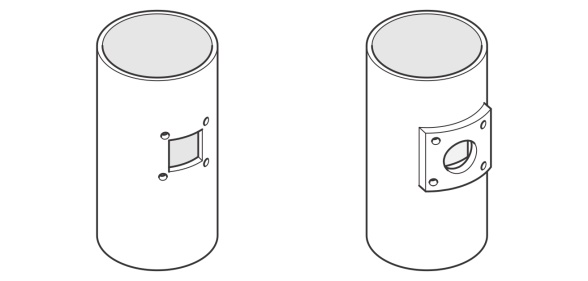
Creating a hollow effect (left) and an extruded effect (right)
| To wrap an object to a cylinder or an ellipse |

|
| 1 . | Using the Pick tool  , select the object that you want to wrap. , select the object that you want to wrap. |
| 2 . | Click Object  Wrap to Cylinder/Ellipse. Wrap to Cylinder/Ellipse. |
| 3 . | Click the cylinder or ellipse to which you want to wrap the object. |
| To adjust the position of the wrapped object, drag it in the drawing window. |
| 4 . | Click Finish on the floating toolbar. |
|
Before clicking Finish on the floating toolbar, click the Duplicate button
 . In the Duplicate offset box, type a value to set the distance between the wrapped object and its duplicate. For a hollow effect, type a negative value. For an extruded effect, type a positive value. . In the Duplicate offset box, type a value to set the distance between the wrapped object and its duplicate. For a hollow effect, type a negative value. For an extruded effect, type a positive value.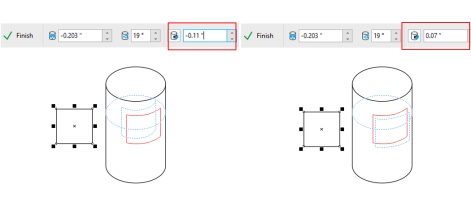 |
|||||
|
Before clicking Finish, type values in the following boxes on the floating toolbar:
|
Filled objects lose their fills when they are wrapped to cylinders or ellipses.
You can wrap an object by right-clicking it, clicking Wrap to Cylinder/Ellipse on the context menu, and clicking the cylinder or ellipse.


