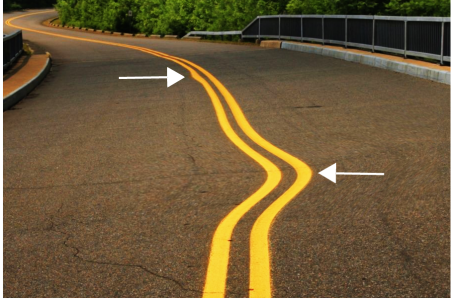
With the Smear tool, you can smear specific image areas while preserving the rest of the image intact. The effect resembles dragging wet paint across an area.
Smearing image areas to produce a subtle (top) and a more pronounced effect (middle)
| To smear image areas |

|
| 1 . | In the toolbox, click the Smear tool  . . |
| 2 . | Drag across the area that you want to smear. |
|
Type a value in the Nib size box on the property bar.
To change the size of the brush nib, you can also drag in the image window while holding down Shift. Drag towards the nib’s center to decrease the radius, or away from the nib’s center to increase it.
|
|
|
Type a value in the Pressure box on the property bar.
|
|
|
Click the Smooth smear button
 on the property bar. on the property bar. |
|
|
Click the Pointy smear button
 on the property bar. on the property bar. |
|
|
Click the Pen pressure button
 on the property bar. on the property bar. |
The difference between a smooth smear and pointy smear is noticeable only with higher Pressure values.

The features documented in the Help are available in the full version of CorelDRAW Graphics Suite 2019. Some features may not be available in this version of the product.

