To disable the automatic adding of color to the Image palette
To add a color to the Image palette
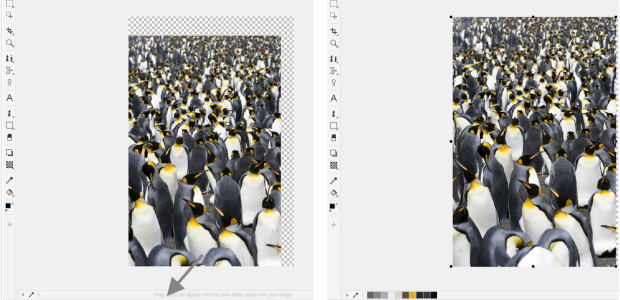
Drag an image or object to the Image palette to add colors.
When you open an image that was created in a previous version of Corel PHOTO-PAINT, the Image palette does not contain any colors. However, you can easily build the Image palette by adding colors from the entire image, an editable area, or a selected object.
You can also hide the Image palette.
| To disable the automatic adding of color to the Image palette |

|
| • | In the top left corner of the Image palette, click the flyout button  , and click Palette , and click Palette  Auto-add colors. Auto-add colors. |
You can also disable the automatic adding of color by clicking the Tools Options Customization, clicking Color Palette in the left pane of the dialog box that appears, and then disabling the Automatically update the image palette check box.
| To add a color to the Image palette |
|
|
In the top left corner of the Image palette, click the flyout button, and click Palette
Add colors from image. |
|
|
In the Image palette, click the Eyedropper tool, and click the image.
|
|
|
In the Image palette, click the Eyedropper tool, hold down Ctrl, and click the image until you add the colors that you want.
|
|
|
Define an editable area. In the top left corner of the Image palette, click the flyout button, and click Palette
Add colors from visible. |
|
|
Select one or more objects. In the top left corner of the Image palette, click the flyout button, and click Palette
Add colors from objects. |
|
|
In the dialog box, click a color swatch, then click Add to palette
Image palette. |
You can deselect the Eyedropper tool by pressing Esc.
You can move a color swatch by dragging a color swatch to a new position.
| To remove a color from the Image palette |
|
| 1 . | Click a color swatch on the Image palette. |
| 2 . | In the top left corner of the Image palette, click the flyout button , and click Delete color. |
| To reset the Image palette |
|
| • | In the top left corner of the Image palette, click the flyout button , and click Palette Reset palette. |
| To show or hide the Image palette |
|
| • | Click Windows Color palette Image palette. |

The features documented in the Help are available in the full version of CorelDRAW Graphics Suite 2019. Some features may not be available in this version of the product.


