In Corel PHOTO-PAINT, you work with bitmaps, also called raster images. Bitmaps are composed of tiny squares called pixels; each pixel is mapped to a location in an image, and has numerical color values. The location and color value data is stored as bits — hence the name bitmaps.
Vector graphics are made up of lines, curves, objects, and fills that are all calculated mathematically. Although you cannot work with vector graphics in Corel PHOTO-PAINT, you can convert vector graphics to bitmaps as you open or import them. This conversion process is called rasterization. You can also copy vector graphics from CorelDRAW and paste them into Corel PHOTO-PAINT.
Vector graphics usually have a smaller file size than bitmaps, so expect file size to increase when you convert vector graphics to bitmaps.
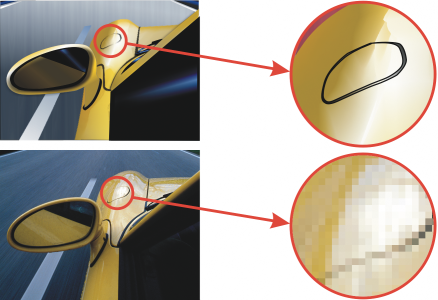
The top illustration is a vector graphic consisting of lines, objects, and fills. The bottom version is a bitmap made up of pixels.
| 3 . |
From the Files of type list box, choose the vector file format of the file you want to import. |
| 6 . |
In the Convert to bitmap dialog box, specify the settings you want. |

You can copy a vector graphic in CorelDRAW and paste it into Corel PHOTO-PAINT by clicking File  New from clipboard.
| To import a vector graphic |

|
|
| 3 . |
From the Files of type list box, choose the vector file format of the file you want to import. |
| 7 . |
In the Convert to bitmap dialog box, specify the settings you want. |
You can copy a vector graphic in CorelDRAW and paste it into Corel PHOTO-PAINT by clicking File New from clipboard.

The features documented in the Help are available in the full version of CorelDRAW Graphics Suite 2019. Some features may not be available in this version of the product.
 on the toolbar.