| • | To apply Camera Motion Blur |
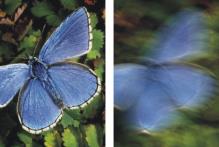
The Camera Motion Blur effect creates a blur similar to what you’d get in a photograph by jostling the camera during a long exposure. It’s particularly effective with an image showing lights on a dark background.
Before (left) and after (right) using Camera Motion Blur.
| To apply Camera Motion Blur |

|
| 1 | To apply the effect to: |
| • | The canvas — Click the Canvas in the Layers panel. |
| • | A selection — Click a selection tool from the toolbox, and drag in the document window to select an area. |
| • | A layer — Click a layer in the Layers panel. |
| 2 | Choose Effects  Focus Camera Motion Blur. Focus Camera Motion Blur. |
| 3 | In the document window, drag to create the blur motion. |
| 4 | In the Camera Motion Blur dialog box, adjust the Bias slider to move the origin of motion along the drag path. |

|
Some features described in the Help are available only in Corel Painter 2015, and are not included in Painter Essentials 5. For more information about Corel Painter 2015, visit http://www.painterartist.com/. |
| To get started with Painter Essentials 5, see the Painter Essentials 5 Quick Start Guide. |
Copyright 2014 Corel Corporation. All rights reserved.