Applying paint effects to gradients
You can apply different paint styles to gradients created with the Interactive Gradient tool.
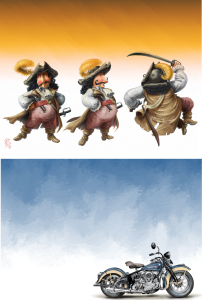
Different paint styles were applied to the gradients used in these images.
(Top) Artwork by Fiona Sansom. (Bottom) Artwork by Greg Newman.
You can preview a paint effect before committing a gradient. If you have experimented with the preset gradient auto-painting styles and you know which style you want to apply, you can quickly draw and commit the gradient without previewing the paint effect.
To apply a paint effect to a gradient

 on the property bar.
If you choose a very small size and amount, the brushstrokes may cover only part of the gradient, especially on a very large canvas.
When you apply a paint effect to a small selection, you may need to lower the size and amount of brushstrokes to achieve the result you want.
The smaller the brushstroke size, the longer it takes to apply the paint effect.
You can apply a paint effect only to a gradient that you draw with the Interactive Gradient tool.

To stop the auto-painting at any time, click in the document window.
To quickly draw and commit a gradient without previewing a paint effect, click the Interactive Gradient tool  in the toolbox, click the Preset flyout button
  on the property bar, and choose a gradient. Disable the Edit nodes option on the property bar, click the Express Paint
  button on the property bar, choose an auto-painting style, and then draw the gradient. The paint effect will be applied automatically as you lift the stylus to commit the gradient.