Quick links to procedures on this page:
Setting up the drawing cursor
You can choose the icon and orientation of the drawing cursor. You can also set the drawing cursor to show a brush ghost — a representation of the brush variant you choose from the Brush Selector bar.
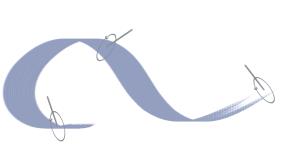
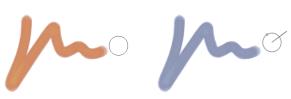
The Brush ghost (left) gives you information about the size of your brush variant. The Enhanced brush ghost (right) gives you information about the tilt, bearing, and rotation of your pen.
|
2
|
In the Cursor Type area, enable the Iconic option. |
|
|
|
|
|
Click the Main Color button, and click a color in the Color dialog box.
|
|
|
|

If you want the drawing cursor icon to be a single pixel, enable the Single pixel option in the Cursor Type area.
|
2
|
In the Cursor Type area, enable one of the following options: |
|
• |
Brush ghost — gives you immediate visual feedback on the cursor, showing you the shape and size of the selected brush |
|
• |
Enhanced brush ghost — gives you visual feedback about the brush size as well as the tilt, bearing, and rotation of the pen. The outer ring indicates the brush size, and the line indicates the tilt and bearing of the pen. If you have a flat-tip pen that supports 360-degree rotation, a dot appears along the outer ring to indicate the pen rotation. |
The Enhanced brush ghost gives more visual feedback about your pen in relation to the tablet.
Copyright 2017 Corel Corporation. All rights reserved.

 Preferences