| • | To adjust texture lighting |
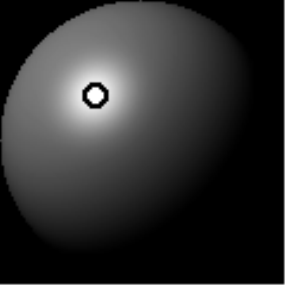
The lighting sphere with a light indicator
| To adjust texture lighting |

|
| 1 | To apply the effect to: |
| • | The canvas — Click the Canvas in the Layers panel. |
| • | A selection — Click a selection tool from the toolbox, and drag in the document window to select an area. |
| • | A layer — Click a layer in the Layers panel. |
| 2 | Choose Effects  Surface Control Apply Surface Texture. Surface Control Apply Surface Texture. |
| 3 | Do one of the following |
| • | For preset lighting, enable the Simple lighting check box, and click a light indicator on the lighting sphere. |
| • | For custom lighting, disable the Simple lighting check box, and perform an action from the following table. |
|
Click a light indicator, and press Delete (macOS), or Backspace (Windows).
|
|
|
Move the Lights slider.
|
|
|
Click a lighting indicator, click the Light Color chip, and then choose a color.
|
| 4 | Adjust any of the Apply Surface Texture controls. For information, see Apply Surface Texture controls. |
Copyright 2017 Corel Corporation. All rights reserved.
