| • | To align a brushstroke to a path or shape |
| • | To set the tolerance area for brushstroke alignment |
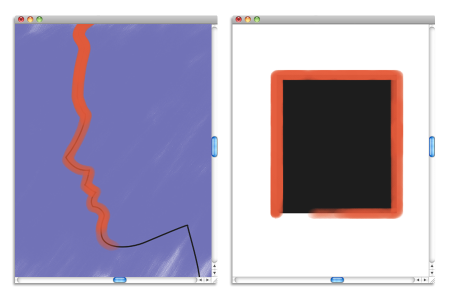
You can align brushstrokes to paths (left) and to shapes (right).
| To align a brushstroke to a path or shape |

|
| 1 | Click the Brush Selector on the Brush Selector bar. |
| 2 | In the Brush library panel, click a brush category and a brush variant. |
| 3 | On the property bar, click the Align to Path button  . . |
| Brushstrokes within the tolerance area of a path or shape are automatically aligned. |
| To set the tolerance area for brushstroke alignment |
|
| 1 | Choose one of the following: |
| • | (macOS) Corel Painter 2018 menu  Preferences Preferences |
| • | (Windows) Edit Preferences |
| 2 | In the Preferences list of categories, click General. |
| 3 | Type a number in the Align Brush to Path tolerance box. |
| The tolerance area is measured in pixels and must be between 1 and 999. |
Copyright 2017 Corel Corporation. All rights reserved.

