| • | To access the Help |
| • | To use the Help |
| • | To access the Corel Painter 2018 User Guide |
| • | To access the Introduction to Corel Painter 2018 Guide |
The Corel Painter 2018 User Guide provides all Help topics in a print-friendly PDF file, which can be accessed online. The User Guide is also published as an eBook. For more information, see Corel Painter 2018 User Guide eBook.
The Introduction to Corel Painter 2018 Guide provides an overview of the most common product features and workflows, helping you get started quickly with the application. This guide also includes information about new features to introduce upgrading users to Corel Painter 2018.
The following table describes the conventions used in the Help.
|
Hold down Command (macOS) or Ctrl (Windows).
|
||
|
Command + I (macOS) or Ctrl + I (Windows)
(For the macOS, press Command + I; for Windows, press Ctrl + I.)
|
||
|
Menu commands (Choose X menu
|
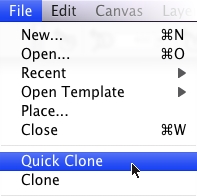
Choose File
|
|
|
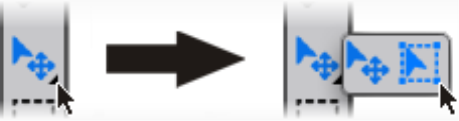
By clicking and holding down the Layer Adjuster tool in the toolbox, you can display a flyout that includes the Transform tool.
|
||
| To access the Help |
|
| • | Choose Help |
| To use the Help |
|
| 1 | Choose Help |
| 2 | Perform a task from the following table. |
|
Click the Contents tab, and click a topic in the left pane.
|
|
|
Click the Index tab, and scroll through the entries to find a topic.
|
|
|
(macOS) Type a word or phrase in the Search box in the upper-right corner of the Help window, and press Return.
(Windows) Click the Search tab, type a word or phrase in the box, and click Go. Note that the search feature does not support quotation marks. If you enclose the word or expression in quotation marks, the search will not produce any results.
|
| To access the Corel Painter 2018 User Guide |
|
| • | Choose Help |
| To access the Introduction to Corel Painter 2018 Guide |
|
| • | Choose Help |
Copyright 2017 Corel Corporation. All rights reserved.