| • | To apply Smart Blur |
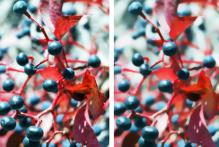
The Smart Blur effect softens the appearance of an image by smoothing out the colors and sharp details. The effect produces a result that is similar to applying soft brushstrokes. You can use Smart Blur to quickly apply a painterly effect to an image.
Before (left) and after (right) using Smart Blur.
| To apply Smart Blur |

|
| 1 | To apply the effect to: |
| • | The canvas — Click the Canvas in the Layers panel. |
| • | A selection — Click a selection tool from the toolbox, and drag in the document window to select an area. |
| • | A layer — Click a layer in the Layers panel. |
| 2 | Choose Effects  Focus Smart Blur. Focus Smart Blur. |
| 3 | In the Smart Blur dialog box, adjust the Amount slider. |
Copyright 2013 Corel Corporation. All rights reserved.
