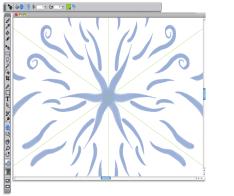
| • | To create a kaleidoscope painting |
| • | To control the display of the kaleidoscope planes |
The green lines that display in the document window delineate the symmetrical planes.
| To create a kaleidoscope painting |

|
| 1 | In the toolbox, click the Kaleidoscope Painting tool  . . |
| 2 | In the Segment Number box on the property bar, type the number of planes that you want to display. |
| 3 | Click the Brush Selector on the Brush Selector bar. |
| 4 | In the Brush library panel, click a brush category, and click a brush variant. |
| 5 | Apply brushstrokes in any of the kaleidoscope segments. |
| If you want to achieve a spiralling effect, apply brushstrokes across multiple segments. |
|
Click the Toggle Planes button
 on the property bar. on the property bar. |
|
|
Disable the Kaleidoscope Painting mode
|
Click the Toggle Kaleidoscope Painting button
 on the property bar. on the property bar. |
The Brush tool is the only tool that you can use to create mirror and kaleidoscope paintings. Other tools, such as the Shape tool, are not supported.
| To control the display of the kaleidoscope planes |
|
| 1 | In the toolbox, click the Kaleidoscope Painting tool . |
| 2 | Perform a task from the following table: |
|
On the property bar, type a value in the Rotation Angle box.
|
|
|
Click the Symmetry Plane Color button, and click a color swatch.
|
|
|
Click the Reset Kaleidoscope Painting button
 on the property bar. on the property bar. |
Copyright 2013 Corel Corporation. All rights reserved.

 , and then drag to rotate the plane.
 , and then drag it to a new location in the drawing window.