| • | To open a document |
| • | To browse for a document (Mac OS) |
| • | To place a file |
You can scale a file before placing it in a document.
For more information, see Working with reference layers.
Corel Painter lets you open the following file formats:
| • | RIFF (RIF) — native Corel Painter format |
| • | TIFF (TIF) |
| • | PNG |
| • | CMYK TIF (TIF) — Because Corel Painter works with RGB colors, the CMYK TIF files that you open or import in the application are converted to an RGB color profile. |
| • | Windows Bitmap (BMP) |
| • | PC Paintbrush (PCX) |
| • | TARGA (TGA) |
| • | GIF — Corel Painter does not convert GIF animations to frame stacks. |
| • | JPEG (JPG) |
| • | Frame stacks (FRM) — Corel Painter animation files |
| • | QuickTime (MOV), Video for Windows (AVI), and numbered files. For more information, see Opening a Corel Painter movie or Importing and exporting numbered files. |
| To open a document |

|
| 1 | Choose File  Open. Open. |
| Corel Painter displays the folder of the last file you opened. |
| 2 | In the Open dialog box, locate the file that you want to open. |
| For each image, Corel Painter lists the dimensions (in pixels), file size, and file format. Files saved in Corel Painter include thumbnails for browsing. |
| 3 | Click Open. |
The File menu also offers you a shortcut to previously opened documents. You can find your file in the recently opened files list by choosing File Recent, and clicking the filename to open the file.
| To browse for a document (Mac OS) |
|
| 1 | Choose File Open. |
| 2 | Click Browse. |
| The Browse dialog box shows thumbnails for all the RIFF files in a folder. |
| 3 | Double-click the filename, or select a file, and click Open. |
| To place a file |
|
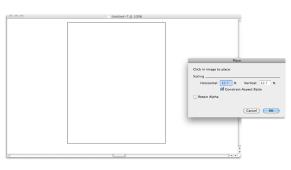
| 1 | Choose File Place. |
| 2 | Select an image file, and click Open. |
| The Place dialog box appears. |
| 3 | Perform a task from the following table. |
|
Click Ok.
|
|
|
In the Scaling area, type a value in both the Horizontal and Vertical boxes.
|
|
|
In the Scaling area, enable the Constrain Aspect Ratio check box.
|
|
|
Enable the Retain Alpha check box. The image mask becomes a layer mask.
|
If the placed image contains a mask and you do not enable the Retain Alpha check box when placing, the image mask is discarded.
Copyright 2013 Corel Corporation. All rights reserved.


