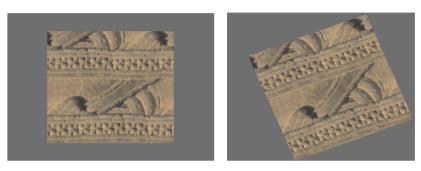
| • | To rotate an image |
| • | To reset the original orientation of an image |
| • | To rotate the canvas |
Rotate an image to accommodate the way you naturally draw.
| To rotate an image |

|
| 1 | From the toolbox, click the Rotate Page tool  . . |
| If you prefer using a keyboard shortcut, hold down Option + Spacebar (Mac OS) or Spacebar + Alt (Windows). |
The cursor changes to a hand with a pointing finger  . . |
| 2 | Drag in the document window to rotate the image. |
| The new rotation angle appears on the property bar. |
|
Hold down Shift while rotating.
|
|
|
Type a rotation angle in the Rotation Angle box on the property bar or in the Navigator panel.
|
You can also rotate an image from the Navigator panel by typing a value in the Rotate canvas box or by opening the Rotate Canvas slider and adjusting the rotation.
| To reset the original orientation of an image |
|
| 1 | In the toolbox, click the Rotate Page tool . |
| 2 | Do one of the following: |
| • | Click once in the document window. |
| • | Double-click the Rotate Page tool . |
| • | On the property bar, click the Reset Tool button  . . |
You can also reset image rotation from the Navigator panel by clicking the Reset Rotation button .
| To rotate the canvas |
|
| 1 | Choose Canvas  Rotate Canvas. Rotate Canvas. |
| 2 | Perform a task from the following table. |
Copyright 2013 Corel Corporation. All rights reserved.


