
| • | To scale a selection |
| • | To rotate a selection |
| To scale a selection |
|
| 1 | In the toolbox, click the Transform tool  . . |
If the Transform tool is not displayed in the toolbox, click and hold the Layer Adjuster tool  to open the flyout, then select the Transform tool . to open the flyout, then select the Transform tool . |
| 2 | On the property bar, click the Scale button  . . |
| 3 | Perform a task from the following table. |
|
Drag a side, top, or bottom handle. On the property bar, click the Commit Transformation button
 . . |
|
|
Drag a corner handle. On the property bar, click the Commit Transformation button
. |
|
|
Hold down Shift while you drag a corner handle. On the property bar, click the Commit Transformation button
. |
|
|
Hold down Alt + Shift (Windows) or Option + Shift (Mac), and drag a corner handle. On the property bar, click the Commit Transformation button
. |
|
|
Hold down Alt (Windows) or Option (Mac), and drag a corner handle. On the property bar, click the Commit Transformation button
. |
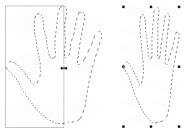
Drag a side handle to scale horizontally.
You can also scale a selection by choosing Edit  Transform Scale, and specifying the horizontal and vertical scale percentages in the dialog box.
| To rotate a selection |
|
| 1 | In the toolbox, click the Transform tool . |
| If the Transform tool is not displayed in the toolbox, click and hold the Layer Adjuster tool to open the flyout, and then choose the Transform tool . |
| 2 | On the property bar, click the Rotate button  . . |
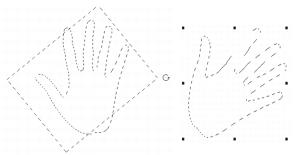
| 3 | Move the pointer outside the border of the selection’s bounding box. |
| 4 | Drag a corner handle. |
| If you want to constrain the rotation by 15-degree increments, hold down Shift while dragging. |
| 5 | On the property bar, click the Commit Transformation button . |
You can also Rotate a selection by choosing Edit Transform Rotate, and specifying the rotation angle in degrees in the dialog box. A positive number rotates clockwise; a negative number rotates counterclockwise.
Copyright 2013 Corel Corporation. All rights reserved.

