|
Part
|
Description
|
|
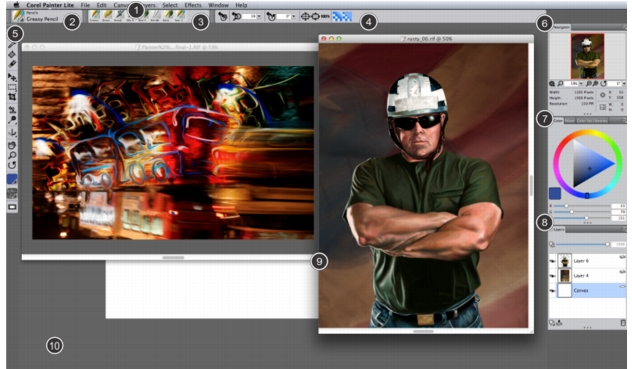
1. Menu bar
|
Lets you access tools and features using pull-down menu options
|
|
2. Brush Selector bar
|
Lets you open the Brush Library panel to choose a brush category and variant. It also allows you to open and manage brush libraries.
|
|
3. Recent brushes bar
|
Displays the most recently used brushes
|
|
4. Property bar
|
Displays commands that relate to the active tool or object. For example, when the Fill tool is active, the fill property bar displays commands for filling selected areas.
|
|
5. Toolbox
|
Lets you access tools for creating, filling, and modifying an image
|
|
6. Navigator panel
|
Lets you navigate in the document window, change the magnification level, and access various document viewing options, such as Tracing Paper and Drawing Modes
|
|
7. Color panel
|
Lets you select a color
|
|
8. Layers panel
|
Lets you manage the hierarchy of layers and includes controls for creating, selecting, hiding, locking, deleting, naming, and grouping layers
|
|
9. Canvas
|
Consists of a rectangular work area inside the application window whose size determines the size of the image you create. The canvas acts as the image background and, unlike a layer, it is always locked.
|
|
10. Application window
|
Contains the elements that help you access the tools and commands you need to paint and modify images.
|