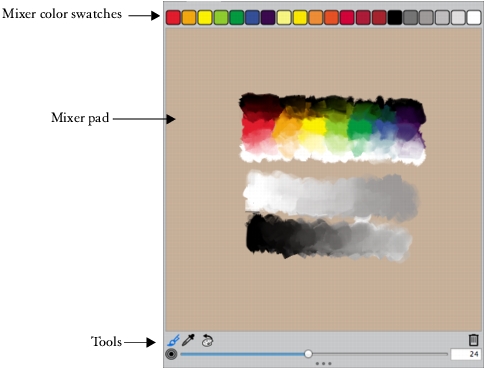
The Mixer panel lets you mimic the experience of mixing colors on a traditional artist’s palette. In the Mixer panel, you can access color swatches and various tools that let you mix colors. You can then apply two or more colors to the Mixer pad, the mixing area at the center of the Mixer panel, and then blend them together to create a new color.
You can save, load, and reset colors in the Mixer panel. In addition, you can save colors as Mixer swatches and save colors to color sets.
The controls in the Mixer panel are used to apply, mix, sample, and clear color on the Mixer pad.
The following table describes all of the Mixer panel tools.
The Clear and Reset Canvas button  erases the contents of the Mixer pad and resets the zoom level to 100%. It does not, however, reset the brush size.
The Change Brush Size slider  lets you increase or decrease the size of the Apply Color tool and the Mix Color tool. The Change Brush Size slider also lets you set the size of the sample area in the Mixer pad when sampling with the Sample Multiple Colors tool. If you adjust the Change Brush Size slider, the new value is retained when you reopen the application.
 |
Some features described in the Help are available only in Corel Painter 12, and are not included in Painter Lite. Visit www.corel.com/painter for more information about Corel Painter 12. |
Copyright 2012 Corel Corporation. All rights reserved.


