Using the Learning Center palette
The Learning Center palette contains helpful information about Corel PaintShop Pro tasks, commands, and tools to help first-time users as well as experienced users get their work done faster. The Home page of the Learning Center palette provides a task-based workflow, which begins with getting your photos into the program. From there, the workflow takes you through tasks such as organizing your photos, adjusting and retouching photos, using layers and selections, adding text, graphics, and effects, and printing and sharing your creations.
Each task appearing on the Home page has its own topics with instructions that describe its related tools or commands. You can click a given topic to access a related tool or command. In this way, you can perform a task as you learn about it. You can also access the Help from the Learning Center palette to obtain additional information about a task.
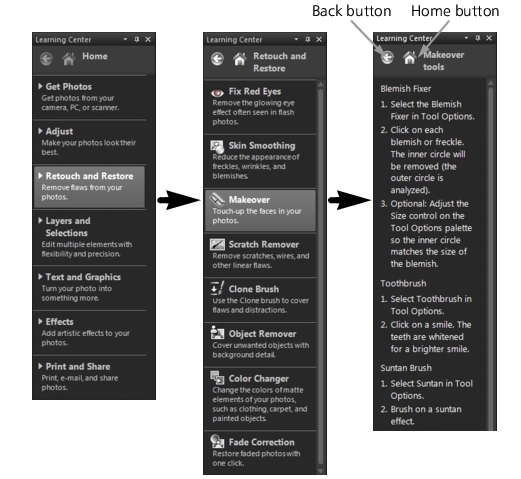
From the Learning Center Home page, click a task, and then click a topic.
| To display or hide the Learning Center palette |
 |
Edit workspace
• |
Choose View  Palettes Learning Center. Palettes Learning Center.
|
 |
The Learning Center palette is displayed by default. It appears
along the right side of the Edit workspace.
|
| To use the Learning Center palette |
|
Edit workspace
1 |
From the Home page, click a task.
|
The topics related to the task appear. |
2 |
Click a topic.
|
The procedure related to the topic appears. |
• |
For topics describing a tool, the tool becomes active. The Tool
Options palette and any other relevant palettes appear.
|
• |
For topics describing a command associated with a dialog box,
the dialog box appears.
|
3 |
Read the procedure for using the tool or command.
|
|
Some tasks and commands are not available unless an image is
open.
|
