Zooming and panning
By default, images that you open in Corel PaintShop Pro appear at a magnification level that allows the full image to appear in the workspace. You can zoom in to get a closer look at image detail or zoom out to view a larger portion of the image. You can also magnify a specific area of an image.
You can view image areas that fall outside the current image window. For example, when you are working at a high magnification level, you can pan or jump to a different image area without having to adjust the magnification level. When an image is too large to fit within its window, scroll bars appear on the bottom and right sides of the image.
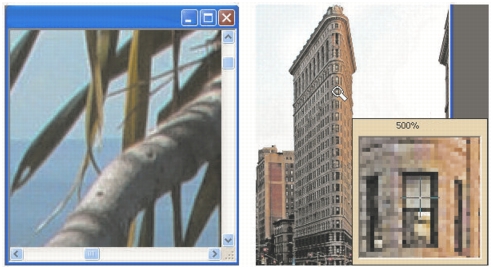
You can use the Zoom tool to magnify your image (left) or you can use the Magnifier command to view a specific area without changing the magnification of the image (right).
| To zoom |
 |
Edit workspace
1 |
On the Tools toolbar, choose the Zoom tool  . .
|
2 |
Click to magnify the area, or right-click to reduce the area.
|
The magnification changes to a preset percentage that appears in the Zoom (%) control on the Tool Options palette. |
 on the Tool Options palette.
 |
By default, when you zoom in or out, the image window
automatically resizes to fit the image.
|
|
You can also change the magnification when the Zoom tool is
active by using the scroll-wheel if one is included on your
mouse or stylus.
|
You can also change the magnification of an image by
choosing View  Zoom in and View Zoom out. Zoom in and View Zoom out.
|
| To magnify an image area |
|
Edit workspace
1 |
Choose View Magnifier to place the cursor in magnifier mode.
|
2 |
Position the cursor over the image area that you want to magnify.
|
The area under the cursor is displayed at 500%. |
|
To turn off the magnifier mode, choose View Magnifier
again.
|
| To pan around an image |
|
Edit workspace
1 |
On the Tools toolbar, choose the Pan tool  . .
|
2 |
Drag within the image.
|
| To fit the window to the image |
|
Edit workspace
• |
Choose Window Fit to Image.
|
|
You can also fit the window to the image by clicking the Fit
Window to Image button  on the Tool Options palette when
the Pan tool or Zoom tool is active. on the Tool Options palette when
the Pan tool or Zoom tool is active.
|
