To set general options for nodes, handles, and previews
To switch color settings for nodes, handles, and previews by using keyboard shortcuts
To create a custom color scheme for nodes, handles, and previews
The Nodes and Handles page of the CorelDRAW Options dialog box lets you customize the appearance of nodes, handles, and vector previews to match your preferences, making it easier to edit nodes and apply vector effects and transformations.
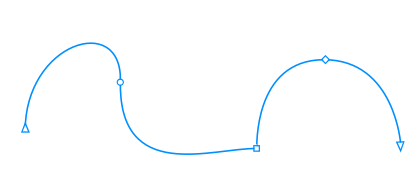
By default, each of the three node types has a different shape. Cusp nodes appear as squares, smooth nodes as circles, and symmetrical nodes as diamonds. You can change the shape of any node type, choosing from shapes such as triangles, diamonds, circles, and polygons. For information about the different type of nodes, see Node types.
The Shape tool  is usually used to select and move nodes. You can enable node tracking to select and move nodes by using the Pick
  , Freehand
  , Polyline
  , or Bézier
  tool.
tool.
The Default color scheme uses blue as the main color and red as the secondary color for displaying nodes, control handles, and previews while you are editing. The main color is used in the first curve you select. When you select additional curves with the Shape tool, they are displayed in red, the secondary color. In addition, the Default color scheme applies a white highlight to improve visibility. This white highlight color is also used to fill unselected nodes and to make vector previews stand out. You can also choose to show unselected nodes without a fill.
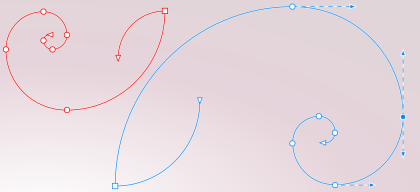
When nodes and handles become hard to see against more complex backgrounds, you can use a keyboard shortcut (Ctrl+Shift+I) to replace the main color with the secondary color and vice versa. You can also switch between showing unselected nodes with and without a fill by using a keyboard shortcut (Ctrl+Shift+G).

Unselected nodes are shown with a fill (left) and without a fill (right).
| To set general options for nodes, handles, and previews |

|
| 1 . | Click Tools  Options CorelDRAW. Options CorelDRAW. |
| 2 . | In the left pane of the dialog box that appears, click Nodes and Handles. |
| 3 . | Perform any of the tasks in the following table. |
|
Choose a size from the Node size list box.
|
|
|
From the Node shape list boxes, choose a shape for each node type: cusp, smooth, and symmetrical.
|
|
|
Next to the Nodes shape list boxes, click Reset.
|
|
|
Enable or disable the Show curve direction when editing check box.
|
|
|
Enable the Enable node tracking check box.
|
|
|
Disable the Show unselected nodes with fill check box.
|
| To switch color settings for nodes, handles, and previews by using keyboard shortcuts |
|
| 1 . | Select the nodes you want with the Shape tool. |
| 2 . | Perform a task from the following table. |
|
Press Ctrl+Shift+I.
|
|
|
Press Ctrl+Shift+G.
|
| To choose a color scheme |
|
| 1 . | Click Tools Options CorelDRAW. |
| 2 . | In the left pane of the dialog box that appears, click Nodes and Handles. |
| 3 . | In the Colors area, choose one of the following color schemes from the Color scheme list box: |
| • | Default |
| • | Custom |
The controls below the Color scheme list box become available only after you choose Custom from the Color scheme list box.
| To create a custom color scheme for nodes, handles, and previews |
|
| 1 . | Click Tools Options CorelDRAW. |
| 2 . | In the left pane of the dialog box that appears, click Nodes and Handles. |
| 3 . | In the Colors area, choose Custom from the Color scheme list box. |
| 4 . | Open the following color pickers, and choose a color: |
| • | Main color — used in nodes and handles when an object is selected for editing. When you select multiple objects for editing, the main color is used for the nodes and handles of the first selected object |
| • | Secondary color — used in nodes and handles when additional objects are selected for editing with the Shape tool or when you are editing vector effects such as extrusions |
|
Disable the Show highlight check box.
|
|
|
Enable the Show node types in different colors check box.
|
|
|
Click Reset next to the Main color and the Secondary color picker.
The Reset button is available only for custom color schemes.
|

The features documented in the Help are available in the full version of CorelDRAW Graphics Suite 2020. Some features may not be available in this version of the product.

