Choose options
The following categories of options are available to help you match settings to your workflow.
• Application Options (Tools  Options CorelDRAW) are specific to CorelDRAW. You can choose the application behavior on startup, customize display colors, and adjust auto-save and backup settings. Other application options apply to editing objects, text, your digital pen, snapping, PowerClip, PowerTRACE, warnings, and plug-ins.
Options CorelDRAW) are specific to CorelDRAW. You can choose the application behavior on startup, customize display colors, and adjust auto-save and backup settings. Other application options apply to editing objects, text, your digital pen, snapping, PowerClip, PowerTRACE, warnings, and plug-ins.• Customization Options (Tools Options Customization) let you adjust the size of the user interface (UI) elements, pick a UI theme, and set the window border and desktop colors. In addition, you can rearrange command bars and controls, and you can create toolbars for your most commonly used controls. For more information, see Customize workspace appearance, Customize menus, Customize toolbars and other command bars, Customize the property bar, and Customize the status bar.
Options Customization) let you adjust the size of the user interface (UI) elements, pick a UI theme, and set the window border and desktop colors. In addition, you can rearrange command bars and controls, and you can create toolbars for your most commonly used controls. For more information, see Customize workspace appearance, Customize menus, Customize toolbars and other command bars, Customize the property bar, and Customize the status bar.• Tool Options (Tools Options Tools) let you set the default behavior of commonly used tools such as the Pick, Eraser, Zoom, Pan, Rectangle, Ellipse, Connector, Dimension, and Mesh Fill tools.
Options Tools) let you set the default behavior of commonly used tools such as the Pick, Eraser, Zoom, Pan, Rectangle, Ellipse, Connector, Dimension, and Mesh Fill tools.• Global Options (Tools Options Global) affect the entire suite. You can choose the language of the user interface, adjust print settings, and change the location for saving content such as fills, fonts, and color palettes. You can also customize the list of the active file filters, and you can adjust privacy and personalization settings. For example, you can opt out of feature tracking, and you can update your profile to receive better recommendations for learning materials.
Options Global) affect the entire suite. You can choose the language of the user interface, adjust print settings, and change the location for saving content such as fills, fonts, and color palettes. You can also customize the list of the active file filters, and you can adjust privacy and personalization settings. For example, you can opt out of feature tracking, and you can update your profile to receive better recommendations for learning materials.• Document Options (Layout Document Options) apply to the active document. They include page size, page viewing mode, layout, grid, ruler, and guideline settings as well as duplicate offset. These options are available only when a document is open.
Document Options) apply to the active document. They include page size, page viewing mode, layout, grid, ruler, and guideline settings as well as duplicate offset. These options are available only when a document is open.In addition, you can access color management options to manage document colors for display and printing. For more information, see Get started with color management.
Each category of options is accessible from a different menu command and brings up a specific page in the Options dialog box. If you cannot find the setting you need, you can switch to another category with a single click.
To switch to another category of options


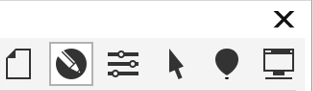
Switch between categories by clicking the corresponding button in the Options dialog box.