CorelDRAW Graphics Suite March 2025 release
The latest updates to Painterly brushes offer new settings that let you simulate drawing with a stylus when you're using a mouse. In addition, there’s an easier way to access recently used brushes, a streamlined interface, enhanced integration with other features, and improved workflow and brushstroke management.
When using a mouse, new controls let you simulate drawing with a pen. You can set the tilt direction of the stylus, allowing you to create varied brushstrokes with the same brush style.
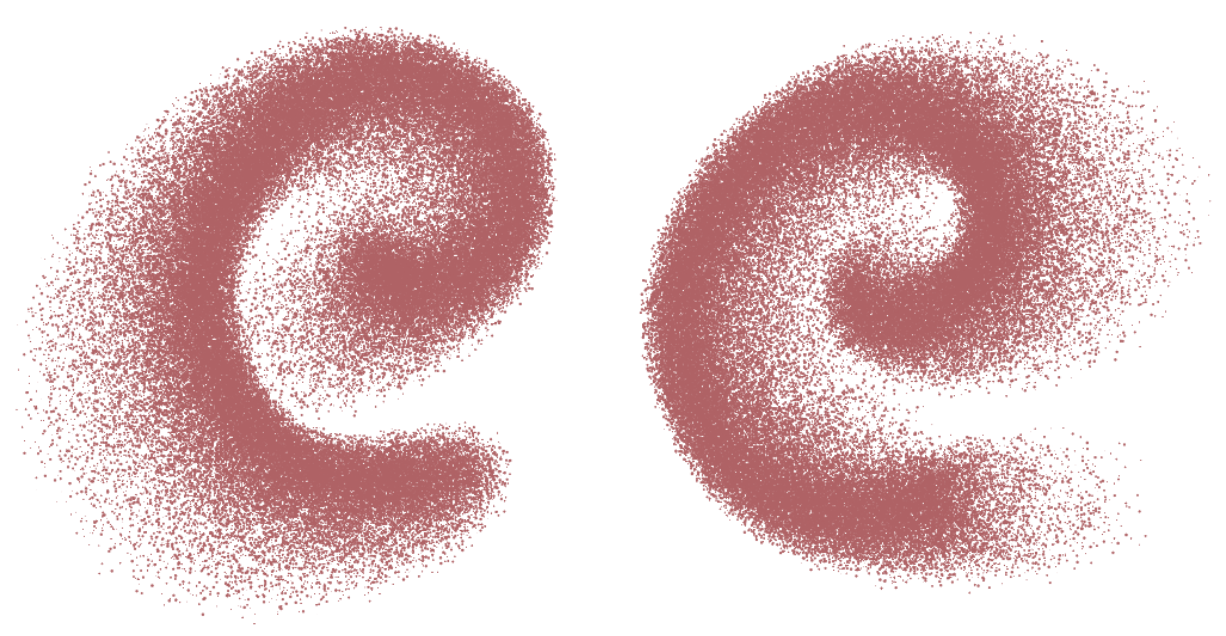
A brushstroke with a tilt direction of 30 degrees (left) and 180 degrees (right).
You can also simulate the tilt angle of the stylus, which determines how close to vertical it is pointing.
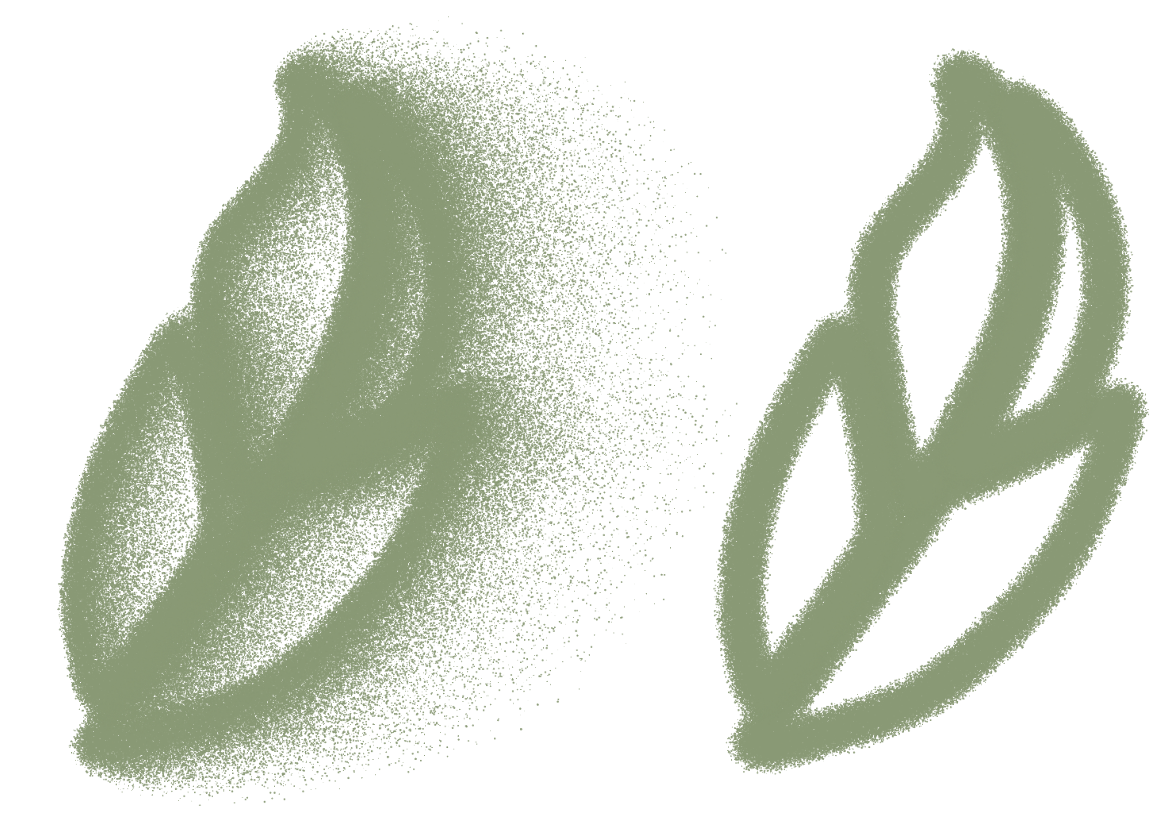
Strokes with (left) and without (right) pen-tilt angle simulation
For more information about pen tilt angle and pen tilt direction, see To simulate pen tilt angle when drawing with a mouse and To simulate pen tilt direction when drawing with a mouse.
The new media tray on the property bar gives you instant access to the three most-recently used brush styles. If no brushes have been used yet, the tray instead displays the top three favorite brush styles by default.
To reduce clutter and improve usability, the property bar and the Properties docker now display only the controls relevant to the selected brush style. For more information about adding controls to and removing controls from the property bar, see Customize the property bar.
A new keyboard shortcut lets you quickly resize a brush between brushstrokes. You can also use the same keyboard shortcut to interactively resize an existing brushstroke. For more information about resizing brushes, see To set brush size.
The new crosshair cursor delivers a more intuitive drawing experience for all brush styles. Brushes that have non-conventional sizing now use only a crosshair cursor, eliminating confusion caused by discrepancies between the size of the cursor and the Brush size value. For brushes that use regular sizing methods, the crosshair displays in tandem with a circular cursor that reflects the brush-size setting. This removes any guesswork about the width of the resulting brushstroke.
It’s now simpler to take advantage of some versatile CorelDRAW features when working with Painterly brushstrokes. You can enter Focus Mode to isolate brushstrokes for editing using new property bar buttons or from the context menu. And right-clicking a brushstroke gives you fast access to PowerClip commands.
It's easier to manage Painterly brushstrokes in the Objects docker. A new icon displays next to brushstrokes, making them easy to distinguish from other elements in your design. You can lock or unlock a brushstroke in the docker so you never have to worry about accidentally moving, resizing, transforming, or otherwise changing it. You can also rename a brushstroke using a new context menu command when you right-click it in the drawing window.
Looking to add more brushes? Check out the brush packs available for download from within the Welcome screen. Simply go to Help  Welcome screen, then click Store, and filter by Free or NEW Painterly Brushes to access free or paid brush packs. Free brush packs are offered exclusively to subscribers. For information on acquiring brushes from within the Brush picker, see Acquire more brushes.
With the Corel Print to PDF driver, you can now print to PDF while taking full advantage of advanced print settings. Features like imposition tools for arranging layouts, custom print profiles for specific print hardware, and precise management of color separations, halftones, and registration marks are now available when generating PDFs, ensuring your output is fully optimized for professional, high-quality print workflows. For more information, see To print to a PDF file.
Note: The CorelDRAW Graphics Suite 2025 for one-time purchase also offers updates to Painterly brushes that enhance brushstroke control and streamline workflows for a more productive experience. You can save favorite brushes for quick access, fine-tune brush settings with a dedicated Painterly Brush tab in the Properties docker, and enjoy new controls for customizing brushstroke appearance. These controls include stylus-like dynamics like changing size, varying transparency, and tapering the ends with mouse movement; texture adjustments; glow effects; and density customization for droplets or particles. You can also smooth brushstrokes, reset brushes to defaults, and set a default brushstroke color for new documents. For more information, see Explore Painterly brushes and Customize the pixel brush marks of Painterly brushes. Additional enhancements include a customizable property bar, the latest Pantone palettes with 175 new colors, and the ability to set a default file save version for convenience. For more information about setting the default save version, see Save drawings. When opening or importing documents with Type 1 fonts, the application warns you about Type 1 font compatibility, with options for automatic or manual font substitution leveraging PANOSE font matching. For more information, see Reference: Type 1 fonts.