Merge and split tables and cells
You can change how a table is configured by merging adjacent cells, rows, and columns. If you merge table cells, the formatting of the upper-left cell is applied to all merged cells. Alternatively, you can unmerge cells that were previously merged.

You can change the look of a table (left) by merging adjacent table cells (right).
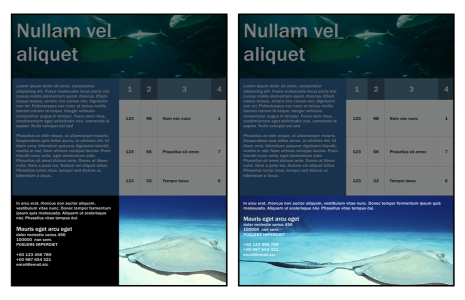
The two cells at the bottom of the table (left) have been merged into a single cell (right).
You can also split table cells, rows, or columns. Splitting lets you create new cells, rows, or columns without changing the size of the table.
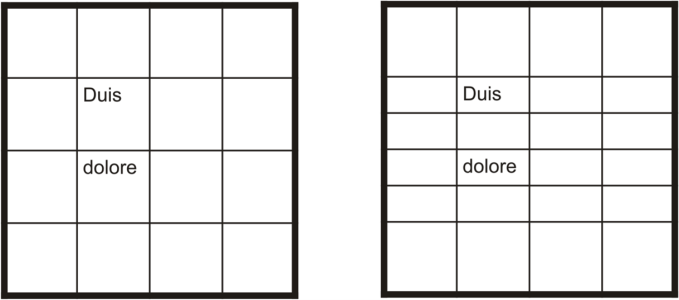
You can insert additional rows in a table (left) by splitting table cells (right).
To merge table cells


To unmerge table cells
To split table cells, rows, or columns
 .
.