Touch
CorelDRAW provides touch gesture support, a Touch workspace, and automatic workspace switching to help you make the most of your touch-enabled device.
You can use common gestures on your touchscreen device to scroll, zoom, and pan in a document as well as access tools grouped in flyouts. The following table describes how to complete common tasks using touch gestures.
Optimized for touch-enabled devices, the Touch workspace is ideal for field work and sketching. It allows you to complete your tasks by using touch, dial, and a stylus, without needing a mouse or keyboard.
The Touch workspace has streamlined user interface (UI) that shows you only the tools and commands that you are most likely to use when using a tablet. In comparison to the other available workspaces, the Touch workspace features the following changes:
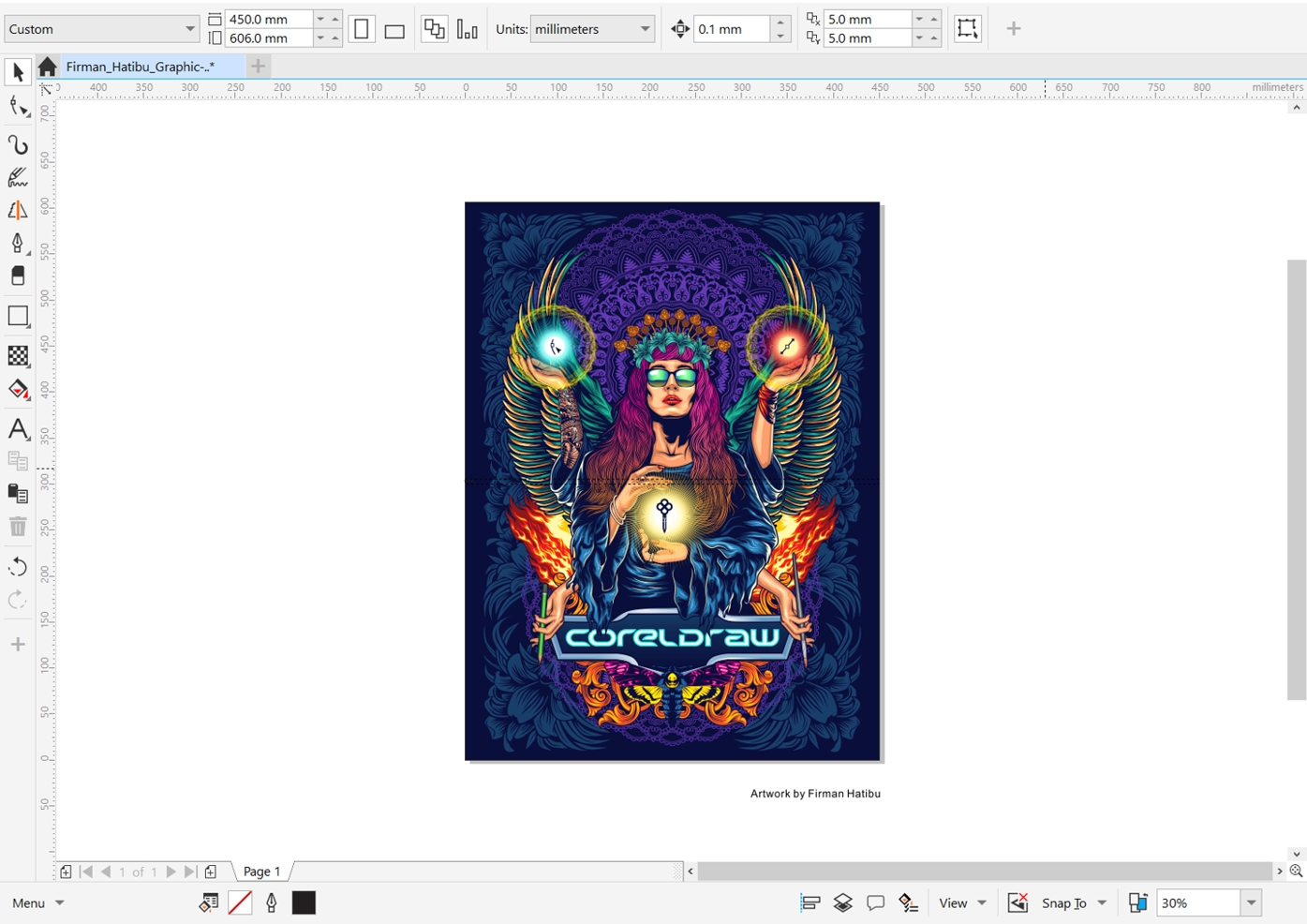
The Touch workspace in CorelDRAW
Switch between Touch and Desktop workspaces
Tablet mode is a Windows feature that optimizes the UI for touch-enabled devices. Usually, Tablet mode is activated when you detach a tablet from its base. When a tablet is attached to its base, it is in Desktop mode. On Windows 10, CorelDRAW automatically switches to the Touch workspace when Tablet mode is enabled. When Tablet mode is disabled, the application switches to a desktop workspace. You can choose which workspace to use in Desktop mode and which workspace to use in Tablet mode. You can also turn off automatic workspace switching.
In addition, you can show and hide the rulers for Desktop mode and Tablet mode independently to suit your workflow. For more information, see To show or hide the rulers for Desktop and Tablet mode.
Similarly to other workspaces, the Touch workspace can be selected from the Window  Workspace menu.
To set options for switching between Tablet mode and Desktop mode

To choose the Touch workspace