Add arrowheads to lines and curves


Arrowheads let you enhance the starting points and endpoints of lines and curves. You can specify the attributes of an arrowhead with precision. For example, you can define the exact size of an arrowhead as well as offset or rotate the arrowhead by a precise amount. You can also flip arrowheads vertically and horizontally. You can save your specified attributes as arrowhead presets for later use.
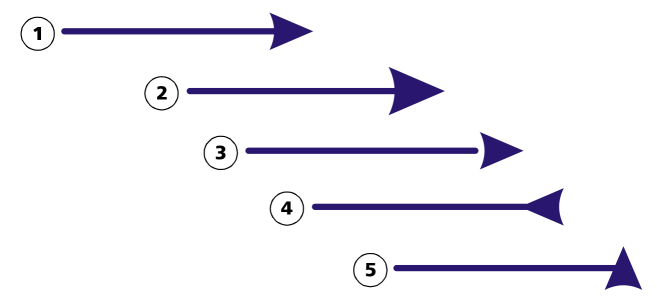
Arrowhead in its original form (1), resized (2), with offset of 6 0% along the x-axis (3), flipped horizontally (4), and rotated at 90 degrees (5).

You can edit existing arrowhead presets, and you can create an arrowhead preset based on an existing one. You can also create an arrowhead preset based on an object such as a curve or a closed shape. When you no longer need an arrowhead preset, you can delete it.

To add an arrowhead

Back to Top
1 Select a line or curve.
2 Open the Start arrowhead picker on the property bar, and click a line-ending shape.
3 Open the End arrowhead picker, and click a line-ending shape.

*

You can remove an arrowhead by choosing the No arrowhead preset from the Start arrowhead or End arrowhead picker.

You can also add arrowheads from the Outline pen dialog box or the Outline section of the Properties docker.

To specify the arrowhead attributes of a line or curve

Back to Top
1 Using the Pick tool , select a line or curve that has an arrowhead.
2 Click Window Dockers Properties.
3 In the Outline section, click the Arrowhead settings button next to the Start arrowhead picker or the End arrowhead picker, and click Attributes.
If the Outline section is not displayed, click Outline. If the Arrowhead settings button is not displayed, click the arrow at the bottom of the Outline section.
If you want starting and ending arrowheads to have the same size, offset, rotation angle, and orientation, enable the Share attributes check box.
4 In the Arrowhead attributes dialog box, perform any of the tasks in the following table.


To
Do the following
Specify the size of an arrowhead
In the Size area, type a value in the Length or Width box.
If you want to create a nonproportional arrowhead, disable the Proportional check box.
Offset an arrowhead
In the Offset area, type values in the X and Y boxes.
Mirror an arrowhead
In the Mirror area, enable the Horizontally or Vertically check box.
Rotate an arrowhead
Specify an angle in the Rotation box.
Save custom arrowhead attributes as an arrowhead preset
Enable the Save as arrowhead preset check box.
You can access the new arrowhead preset from the Start arrowhead and End arrowhead pickers on the property bar.

*

You can switch arrowheads from one end of a line or curve to another by clicking the Arrowhead settings button, and clicking Swap.

You can remove an arrowhead from a line or curve by clicking the Arrowhead settings button and clicking None.

To edit an arrowhead preset

Back to Top
1 Using the Pick tool , select an object that has an arrowhead.
2 Click Window Dockers Properties.
3 In the Outline section, click the Arrowhead settings button next to the Start arrowhead picker or the End arrowhead picker, and click Edit.
If the Outline section is not displayed, click Outline. If the Start arrowhead picker is not displayed, click the arrow at the bottom of the Outline section.
4 In the Arrowhead attributes dialog box, specify the attributes you want.

*

You can create an arrowhead preset that is based on an existing preset. Click Arrowhead settings button, and click New. Then, specify the attributes you want in the Arrowhead attributes dialog box, and type a preset name in the Save arrowhead area.

To delete an arrowhead preset, select the preset from the Start or End arrowhead picker, click the Arrowhead settings button, and click Delete.

To create an arrowhead preset from an object

Back to Top
1 Select an object to use as an arrowhead.
2 Click Object Create Arrowhead.
3 In the Create arrowhead dialog box, type a value in the Length box or Width box.
If you want to create a nonproportional arrowhead, disable the Proportional check box, and type values in both the Length and Width boxes.

Was this page helpful? Send feedback.


Some features documented in the Help are available exclusively to subscribers. For more information about CorelDRAW subscription, visit coreldraw.com.