Fuse curves in symmetry groups
If you want to apply a fill to an open curve and its mirrored copy, you need to fuse them into a single curve. For successful fusion to take place, the end points of the curves must be snapped to the symmetry line.
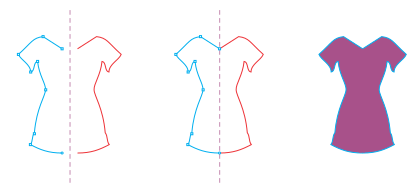
From left to right: Creating an open curve; snapping the end points to the symmetry line; filling the fused curve.
When two curves are fused, the fill of the primary curve is applied to the reflected curve. However, nodes appear only on the primary curve of the fused object. You can adjust the shape of the fused object by manipulating the nodes of the primary curve.
To fuse open curves in a symmetry group

 Snap to Symmetry Lines).
Only the selected curve set is fused into a single object. Unselected open curves are not affected.

You can undo the fusion by clicking the Fuse open curves button  on the property bar to disable it.