Wheel devices
With CorelDRAW Graphics Suite, you can take advantage of Microsoft Surface Dial and other wheel devices so that you can focus on your creative tasks. Especially useful in combination with a stylus, a wheel device helps you draw and create naturally and ergonomically. You can easily transition between tools and tasks by using your nondominant hand while you are sketching or designing with your stylus.
Your wheel device can be used in two modes: off-screen (placed on your desk) and on-screen (placed directly on the screen).
For information about setting up your wheel device, see the manufacturer’s instructions.
When the wheel device is off the screen, its on-screen interface lets you zoom in and out as well as undo and redo actions. In addition, you can now navigate the pages of your document, and you can change the object order by moving selected objects to the front or back of other objects. Plus, your wheel device can help you use the LiveSketch tool more efficiently. For more information, see Wheel devices and the LiveSketch tool.

The on-screen UI of surface dial when used in off-screen mode in CorelDRAW.
In on-screen mode (when you place the wheel device on the screen), the on-screen UI is designed to simulate an artist’s palette, giving you quick access to tools and controls through the Tool and Property panels. To select a tool or control on the on-screen UI, you need to use your stylus, or you can simply tap on a touch-screen enabled device.
The default Tool panel lets you switch between the following tools: Pick, Eraser, Rectangle, Ellipse, Text, Pen, and Bézier. You can also access commonly used commands such as Delete, Convert to curves, and Weld.
From the Property panel, you can adjust document, tool, and object settings. For example, you can change the document dimensions and orientation as well as the unit of measurement.
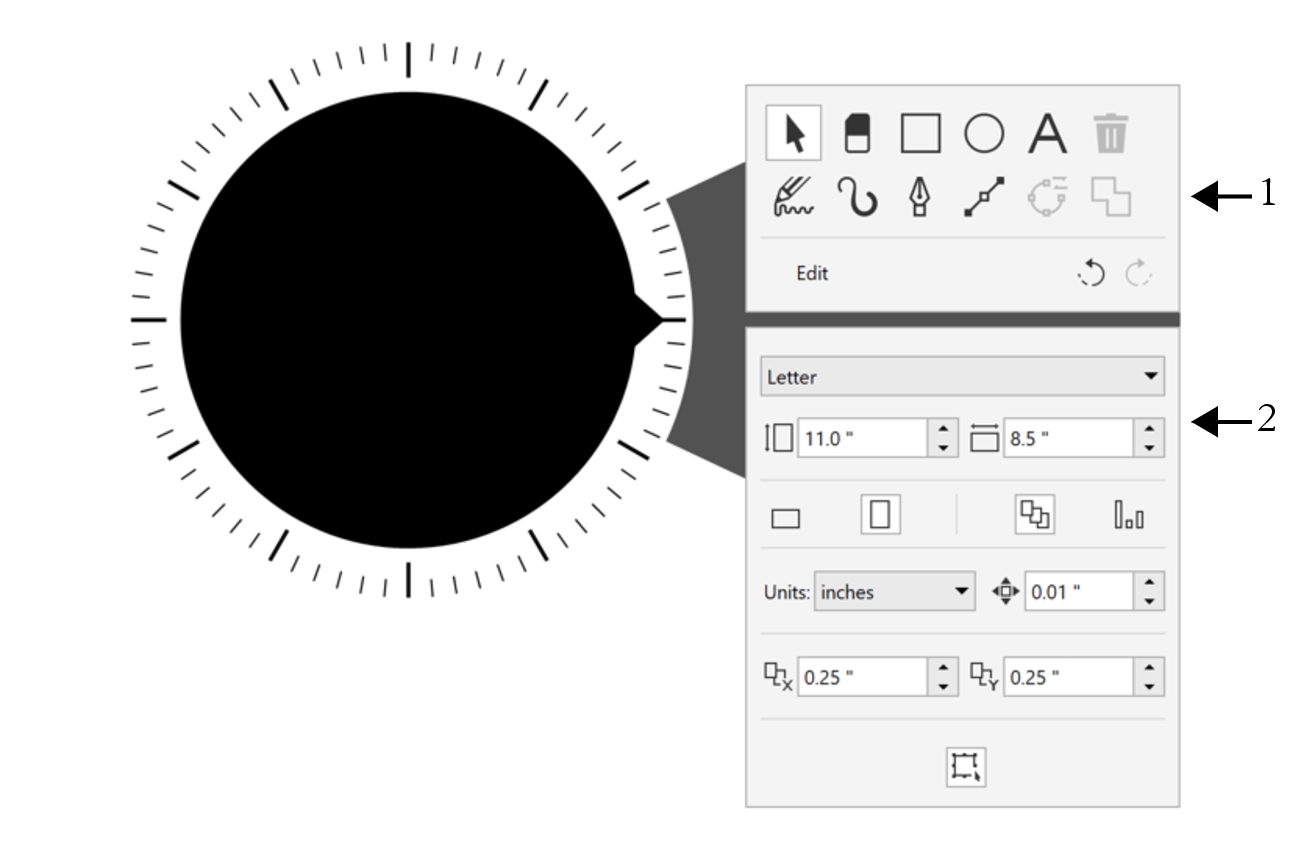
The Tool panel (1) and the Property panel (2) appear when you place the wheel device in the drawing window.
The Property panel is similar to the property bar. It includes controls that are relevant to the selected tool and object. Each time you switch tools on the Tool panel, the Property panel is updated to allow you to edit tool and object properties on the fly. For example, if you have an object selected in the drawing window, you can use the Property panel to quickly adjust object width, height, and outline width; and you can mirror and rotate the object. In addition, if you need to adjust property values, the wheel device can help you fine-tune them with precision.
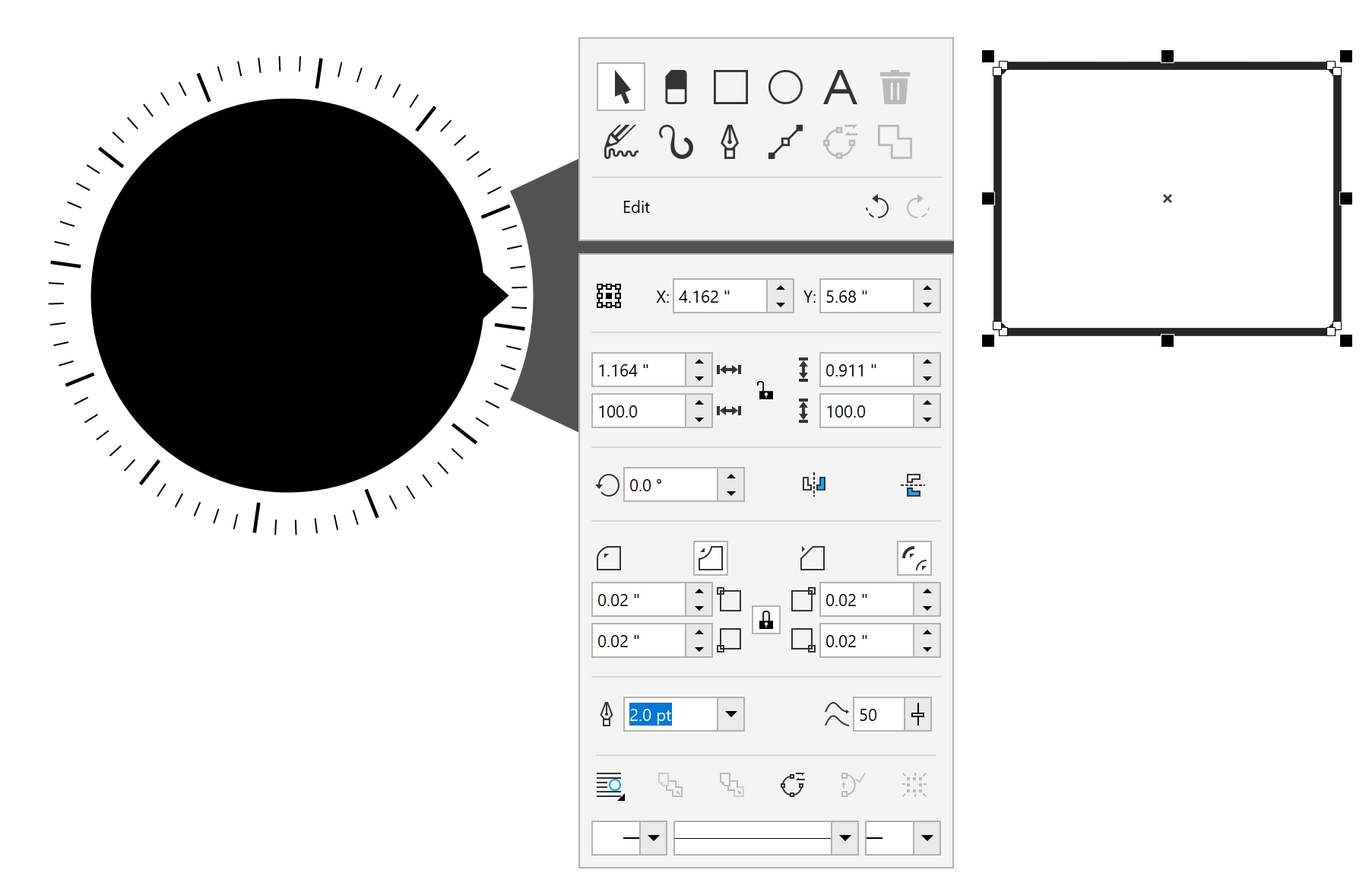
The Property panel displays controls that let you edit the selected object, a rectangle in this example.
To tailor the Tool panel to your workflow and have a non-cluttered yet complete collection of tools at your fingertips, you can remove, add, and rearrange tools.
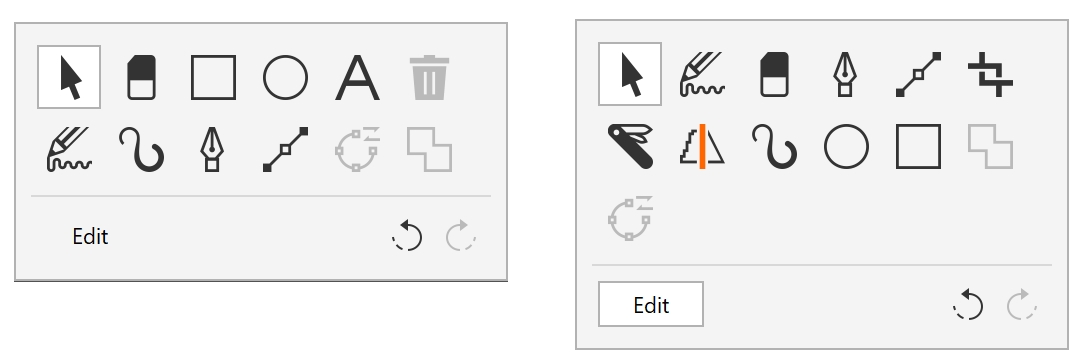
Left: The default Tool panel. Right: A customized Tool panel. In this example, new tools (Crop, Knife, and Smart Drawing) are added; the Delete button is removed; and the tools are rearranged.
Wheel devices and the LiveSketch tool
Your wheel device can be especially helpful when you are sketching with the LiveSketch tool. In off-screen mode, you can use the wheel device to easily undo and redo your strokes. In on-screen mode, you can fine-tune the time it takes to adjust strokes, and set other tool and stroke properties. Plus, you won’t need to use a keyboard to reset the timer and have your strokes adjusted instantly in both modes of the wheel device.
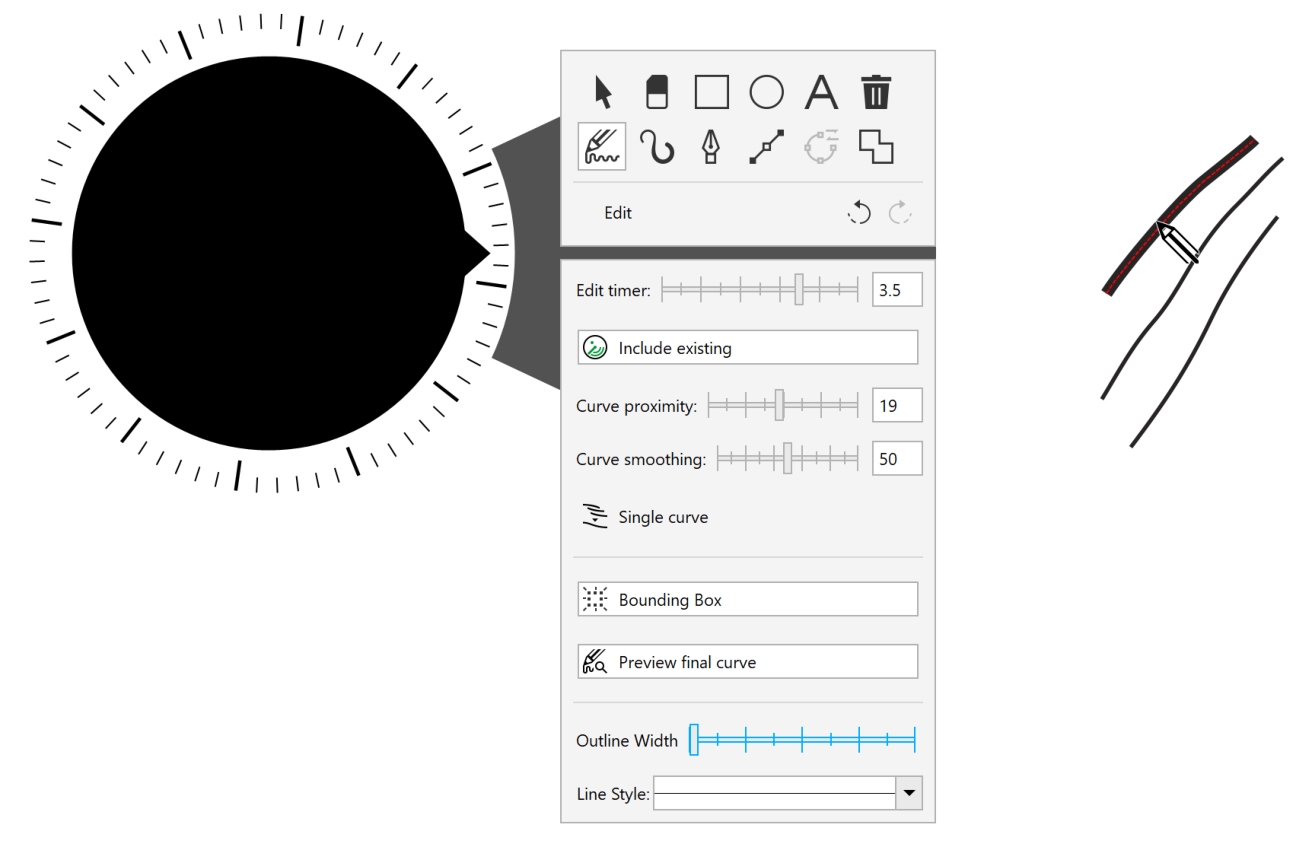
The Property panel displays controls related to the LiveSketch tool.
To use a wheel device in off-screen mode

To choose tools and adjust properties using a wheel device in on-screen mode
To delete, convert or weld objects using a wheel device in on-screen mode
 on the
  on the
  on the
 To customize the Tool panel

Add, remove, and rearrange tools to customize the Tool panel.
To use the LiveSketch tool with a wheel device in off-screen mode
To use the LiveSketch tool with a wheel device in on-screen mode