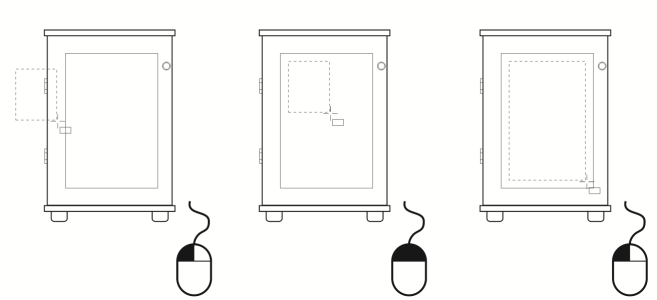
You can move objects by dragging, by specifying distance and direction, or by nudging. You can also move an object while you are drawing it.
Super nudging and micro nudging let you move objects into place by increments. By default, you can nudge objects in 0.01-inch increments, but you can change the nudge values to suit your needs.
| 2 . |
Click Object  Transform Position. Transform Position. |
|
The Transform docker appears. |
|
By default, the Relative position check box in the Transform docker is enabled, and the position of the center anchor point of the object is used as a reference point. It is identified as 0,0 in the H and V boxes. When you specify a different position in the H and V boxes, the values represent a change from the current position as measured from the center anchor point of the object. |
|
• |
Enable the Distance option. In the Horizontal and Vertical boxes, type the horizontal and vertical values by which to move the object. Alternatively, in the Specify position box, type a value to position the object along the selected axis, and specify the angle of the selected axis in the Angle axis box. |
|
• |
Enable the Gap and direction option.Type a value for the gap, and choose the direction to move the object. This option moves the object in the selected direction at a distance equal to the height or width of its bounding box plus the specified gap. |

When you disable the Relative position check box, the point of origin (0,0) is at the lower-left corner of the drawing page.

When you use the Distance option to move an object, you can also set the position interactively. Click the Set position interactively button  , and drag the pointer in the drawing window to specify the distance and angle by which to move the object.
You can also move a selected object by dragging it to another position in the drawing.
You can set a precise location for the object by clicking the Geometric properties button  on the property bar and typing values in the Properties docker.
You can use snapping to move an object with precision. For more information, see Work with precision.
Moving an object while drawing
| 1 . |
Click Layout Document Options. |
You can also set the nudge distance by deselecting all objects and typing a value in the Nudge distance box on the property bar.
To save the new nudge distances to use in new drawings, click Tools Save settings as default.