You can insert a symbol into a drawing, which creates a symbol instance. A symbol instance can be modified in ways which do not affect the symbol definition in the library. For example, you can modify the size and position of a symbol instance, without affecting the symbol definition. You can also have the symbol instance scaled automatically to match the current drawing scale. For a list of object properties that can be modified in a symbol instance, see Modifying symbol instances.
You can revert a symbol instance to an object or objects while preserving its properties. When a linked symbol, which is stored in a library, is changed, you can update the link to refresh the symbol instances. You can also delete a symbol instance.
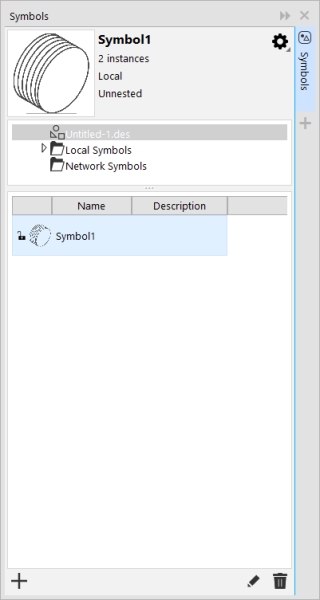
The Symbols docker lets you work with symbols.
Symbols docker
The Symbol Preview area shows a symbol and information about it, including
linked — the symbol definition is added from a library file
local — (also known as "internal") the symbol was created in the active document or was made local by breaking a link
Just below the preview area, a tree view lets you see all linked and local symbol definitions in the active document, including symbols that are not instanced. You can also navigate to symbol libraries.
| 1 . |
Click Object  Symbol Symbols. Symbol Symbols. |
| 2 . |
In the Symbols docker, click the active document at the top of the tree view to see symbols in the current document. |

To find symbols, browse the Local Symbols and Network Symbols folders in the Symbols docker. The Installed Symbols folder contains all symbol libraries that are included with the application.
| 1 . |
Click Object Symbol Symbols. |
You can also insert a symbol instance by dragging a symbol from the Symbols docker to the drawing window.

If a symbol contains multiple objects, all objects in the symbol instance are treated as if they were a group. You cannot modify individual objects in a symbol instance.
Not all properties of a symbol instance can be modified. For a list of properties that can be modified, see Modifying symbol instances.
| 2 . |
Click Object Symbol Update from Link. |
The Update from Link command appears disabled if the linked symbol has not been modified.
You can also click Window Sources and use the Sources docker to update links to symbols. An exclamation mark appears next to objects that need to be updated.
| 2 . |
Click Object Symbol Revert to objects. |
If the external definition of the symbol instance contains styles, those styles are added to the document. If the styles in the symbol instance differ from those in its external definition, you are prompted to rename the style or merge the two styles. You can check for conflicting styles in the Links and bookmarks docker. An exclamation mark appears next to objects that need to be updated.
You can also revert a symbol instance to an object by right-clicking the symbol instance and clicking Revert to objects.
The symbol definition remains in the active document.

 , and ensure that Scale to world units is enabled.