Work with linked assets
When you find the symbol library you need, you can link it to the document so that it is available for use. The Linked assets view in the Assets docker lets you access the symbol libraries that are linked to the active document. If the symbol libraries are linked from the Cloud, you can refresh the file list to sync it with your Cloud folder.
You can open your linked symbol libraries for editing, but not linked libraries that are shared with you. You can also sync linked libraries with the source so that their symbols are always up-to-date.
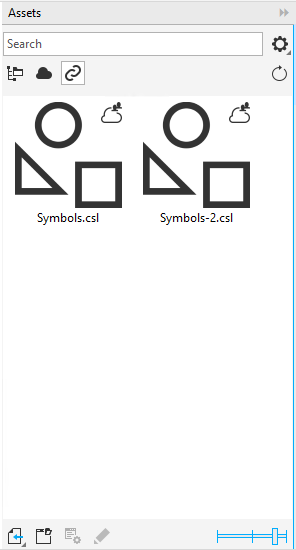
The Symbols docker lets you access the symbols in a linked library form the Linked Symbols section so you can use them in your projects. For more information, see Use symbols in drawings.
To link a symbol library to the active document


 , and click
You can also right-click a symbol library, and click Link to document.
To work with linked symbol libraries
 .
.  .
.