| • | To add columns to a text frame |
| • | To resize text frame columns |
| • | To change the flow of bidirectional text in columns |
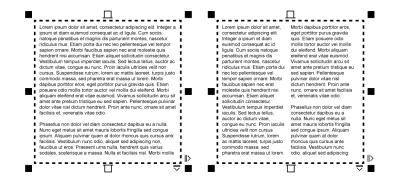
The text in the frame (left) was laid out in two columns (right).
| To add columns to a text frame |

|
| 1 . | Select a paragraph text frame. |
| 2 . | Click Window  Property manager. Property manager. |
| 3 . | In the Property manager docker, click the Frame button  to display the frame-related options. to display the frame-related options. |
| 4 . | Type a value in the Number of columns box. |
| To resize text frame columns |
|
| 1 . | Click the Text tool  and select a text frame with columns. and select a text frame with columns. |
| 2 . | Perform a task from the following table. |
|
Click the Text tool
. Drag a column side selection handle. |
|
|
In the Property manager docker, click the Frame button
to display the frame-related options. Click the Columns button  , and type values in the Width or Gutter boxes. , and type values in the Width or Gutter boxes. |
|
|
In the Property manager docker, click the Frame button
to display the frame-related options. Click the Columns button , and enable the Equal column width check box. |
| To change the flow of bidirectional text in columns |
|
| 1 . | Select a paragraph text frame. |
| 2 . | Click Window Property manager. |
| 3 . | In the Property manager docker, click the Frame button to display the frame-related options. |
| 4 . | Enable the Right-to-left columns check box. |
The Right-to-left columns option is available only for bidirectional languages, such as Hebrew and Arabic. The proper keyboard must also be installed.
Copyright 2017 Corel Corporation. All rights reserved.

