| • | To sharpen a RAW camera file |
| • | To reduce noise in a RAW camera file |
You can sharpen RAW camera files to enhance image edges.
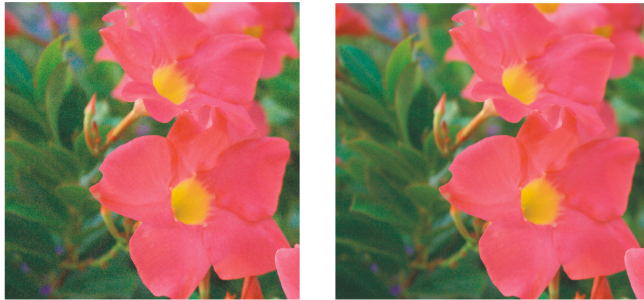
Before (left) and after (right) the amount of noise is reduced in a RAW camera image
| To sharpen a RAW camera file |

|
| 1 . | Do one of the following: |
| • | Click File  Open. Open. |
| • | Click File Import. |
| 2 . | Select a RAW camera file or multiple RAW camera files, and click Open or Import. |
| 3 . | In the Camera RAW Lab, click the Detail tab. |
| 4 . | Move the Sharpness slider to enhance the edges in an image. |
| To reduce noise in a RAW camera file |
|
| 1 . | Do one of the following: |
| • | Click File Open. |
| • | Click File Import. |
| 2 . | Select a RAW camera file or multiple RAW camera files, and click Open or Import. |
| 3 . | Click the Detail tab. |
| 4 . | Move any of the following sliders to the right: |
| • | Luminance noise — to reduce the amount of luminance noise |
| • | Color noise — to reduce the amount of color noise. Note that higher settings may decrease the color accuracy of an image. |
Adjusting both the Luminance noise and Color noise settings produces better results.

Some features described in the Help are not included in this version of the product, and are available only in CorelDRAW Graphics Suite 2018.
Copyright 2018 Corel Corporation. All rights reserved.

