Light (formerly known as Brightness/Contrast/Intensity)
The Light adjustment lets you adjust the brightness and contrast across the entire image as well as brighten or darken specific areas of the images such as its highlights, shadows, and midrange tones.
To use the Light adjustment


• Brightness slider — brightens or darkens an entire image. This control can correct exposure problems caused by too much light (overexposure) or too little light (underexposure) at the time the photo was taken. If you want to lighten or darken specific areas of an image, you can use the Highlights, Shadows, and Midtones sliders.
• Contrast slider — increases or decreases the difference in tone between the dark and light areas of an image. Moving the slider to the right makes the light areas lighter and the dark areas darker. For example, if the image has a dull, gray tone, you can sharpen the detail by increasing the contrast.
• Intensity slider — increases or decreases the intensity of colors. Contrast and intensity usually work together because increasing the contrast can wash out detail in shadows and highlights; however, increasing the intensity can restore this detail.
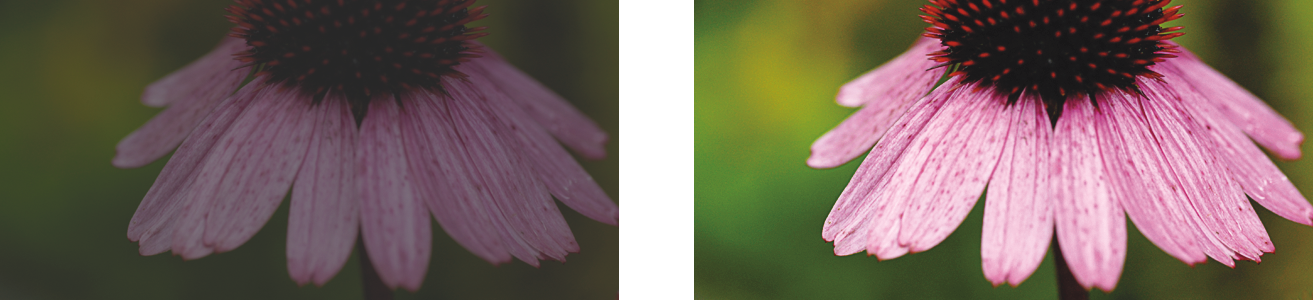
Adjusting the brightness and contrast of an image can reveal more image detail.
• Highlights slider — lets you adjust brightness in the lightest areas of an image. For example, if you take a photo with a flash, and the flash washes out the foreground subjects, you can move the Highlights slider to the left to darken the washed-out areas of the image. You can use the Highlights slider in conjunction with the Shadows and Midtones sliders to balance the lighting.
• Shadows slider — lets you adjust the brightness in the darkest areas of an image. For example, a bright light behind a photo subject (backlighting) at the time a photo is taken can cause the subject to appear in shadow. You can correct the photo by moving the Shadow slider to the right to lighten the dark areas and reveal more detail. You can use the Shadows slider in conjunction with the Highlights and Midtones sliders to balance the lighting.
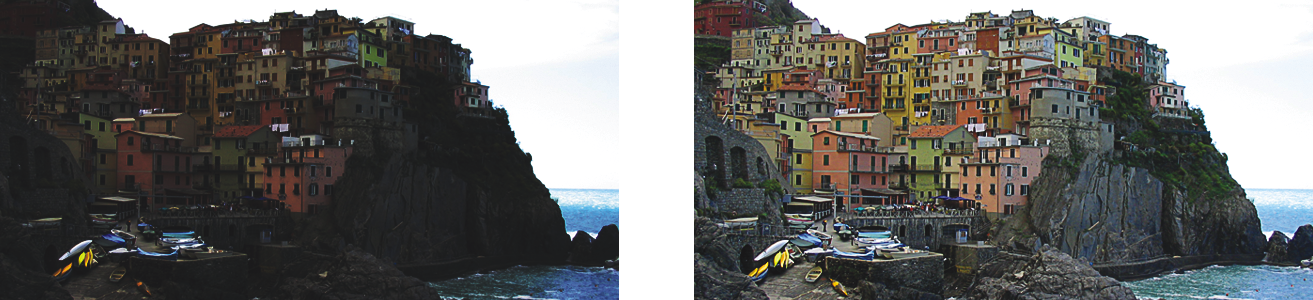
The Highlights and Shadows sliders can lighten or darken specific areas of an image.
• Midtones slider — lets you adjust the brightness of the midrange tones in an image. After adjusting the highlights and shadows, you can use the Midtones slider to fine-tune the image.

You can also access the Light adjustment from the Adjust menu, or by pressing Command + L.