White Balance
The White Balance adjustment can help you achieve accurate colors in your photos by correcting color casts in your image. Color casts are typically caused by the lighting conditions when a photo is taken, and they can be influenced by the processor in your camera or scanner.
To correct a color cast


• Temperature slider — lets you correct color casts by "warming" or "cooling" the color in an image to compensate for the lighting conditions at the time the photo was taken. For example, to correct a yellow color cast caused by taking a photo indoors in dim incandescent lighting, you can move the slider toward the blue end to increase the temperature values (based on degrees Kelvin). Lower values correspond to low lighting conditions, such as candlelight or light from an incandescent light bulb; these conditions cause an orange cast. Higher values correspond to intense lighting conditions, such as sunlight; these conditions cause a blue cast.
• Tint slider — lets you correct color casts by adjusting the green or magenta in an image. You can add green by moving the slider to the right; you can add magenta by moving the slider to the left. Moving the Tint slider after using the Temperature slider lets you fine-tune an image.

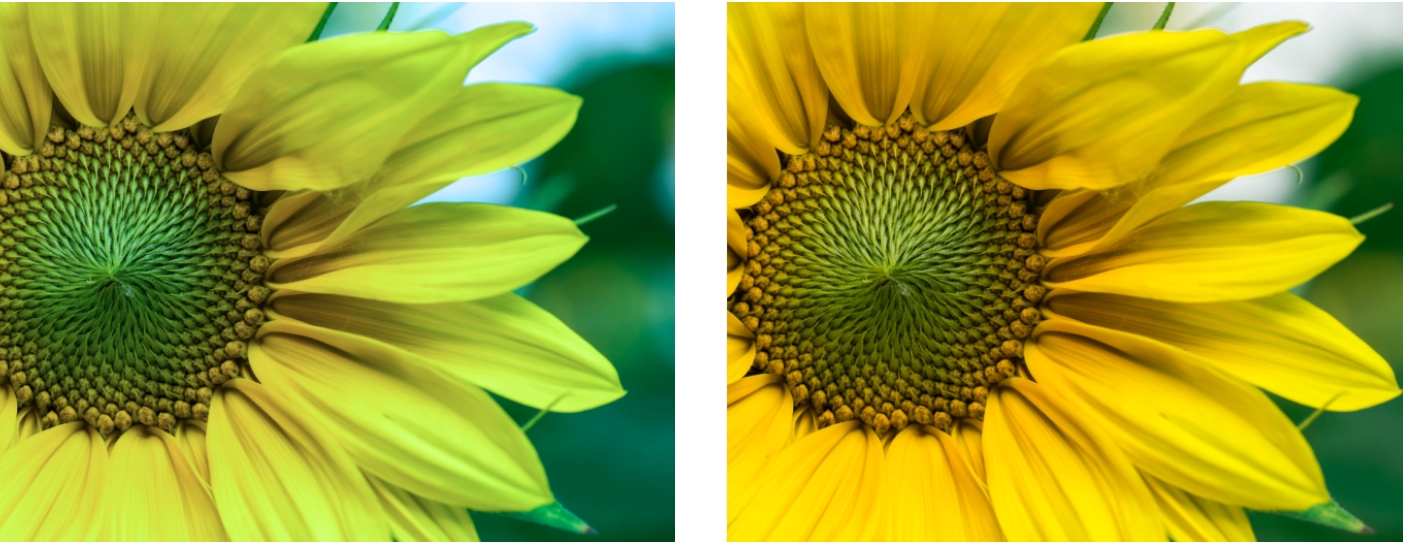
Correction of a color cast. The image on the right is the corrected version.

You can also access the White Balance adjustment from the Adjust menu, or by pressing Command + B.