Change node types
When you change a node type, you change the way segments attached to the node behave. While a new node type may not immediately affect a path’s shape, it will change the shape when you move the control points to modify the path.
By changing the node type, you can change a line segment to a curve segment or change a curve segment to a line segment. When you change a line segment to a curve segment, you must select the nodes at either end of the segment to view the curve’s control points.
There are three types of curve nodes: smooth, symmetrical, and sharp. Symmetrical nodes force the curve on one side of a node to mirror the curve on the other side of the node. Sharp nodes add sharp bends to a path. Smooth nodes create a smooth transition between two segments.
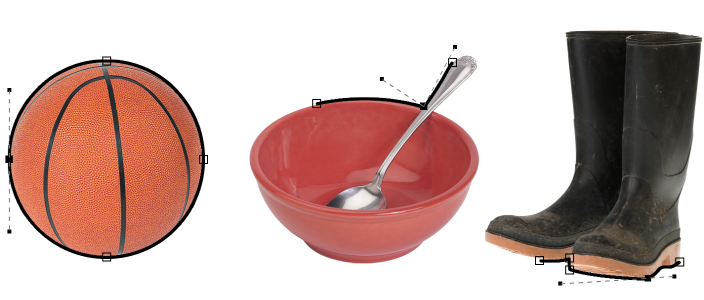
Node types from left to right: Symmetrical, sharp, and smooth.
To change a path segment to a curve or a line

 .
.

You can also change a path segment to a curve or a line by clicking on the segment and clicking the To line or To curve buttons on the property bar.
To change the curve type of a path node


When a curve segment is connected to a line segment with a smooth node, you can only move the control point on the curve side along an imaginary line that follows the extension of the line segment.
A curve node that is connected to a line segment must be Smooth or Sharp.