Levels (formerly known as Contrast Enhancement)
The Levels filter lets you adjust the tone, color, and contrast of an image while preserving shadow and highlight detail that is lost when you adjust the brightness, contrast, and intensity of an image. An interactive histogram lets you shift or compress brightness values to printable limits. The histogram can also be adjusted by sampling values from the image.
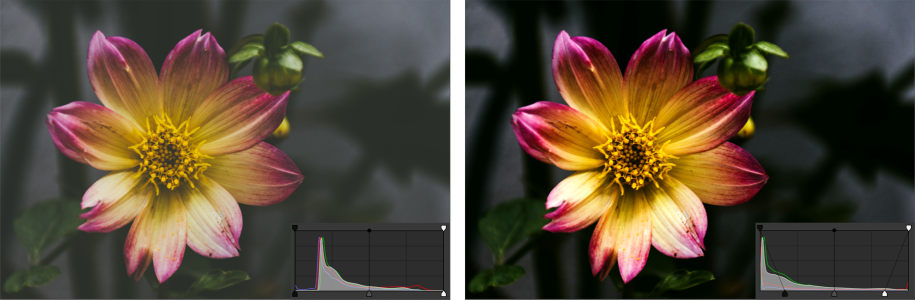
Original image (left); the image with Levels applied and expanded tonal range (right)
To use the Levels adjustment interactively by using a histogram


 , and click
 The arrow on the left lets you darken shadow areas. The new black point value is mapped to the Output value for shadows, which is 0 by default.
The arrow on the right lets you lighten highlight areas. The new white point is mapped to the Output value for highlights, which is 255 by default.
 .
. to sample shadow areas, or click the
  to sample highlight areas.
You can also access the Levels adjustment from the Adjust menu.