Straighten images and objects interactively
The Straighten tool lets you straighten crooked images and objects interactively by aligning a straightening bar with an image feature. After you align the straightening bar, Corel PHOTO-PAINT rotates the image so that the straightening bar is perfectly horizontal. The Straighten tool is especially useful when an image has a strong vertical or horizontal feature, such as a building or horizon.

Straightening an image: 1. Show the straightening bar by selecting the Straighten tool. 2. Align the straightening bar with an image feature. 3. Apply the rotation.
Three straightening modes are available to help you choose how the image or object is rotated. The default Auto mode rotates the image based on the position of the straightening bar. For more control, you can choose the Vertical or Horizontal mode.
By default, the application automatically crops the image after straightening to remove the edges that appear at an angle. You can choose not to crop the image but fill the edges of the image with the background color instead.
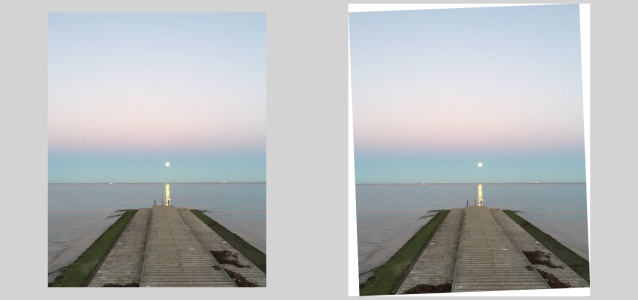
Cropped image after straightening (left); final image without cropping (right)
The straightening bar is usually adjusted by moving its handles. For greater precision, you can also specify an angle of rotation by which to rotate the straightening bar. You can also reset the straightening bar by clearing any previous rotations.
To straighten an image interactively

 in the toolbox. (This tool is located in the
  to enable it before clicking the
  on the property bar.
You can also select the Straighten tool by pressing Shift+X.