What’s new in this version of Corel Painter
Enhanced! Performance optimization
Corel Painter 2021 takes advantage of the latest developments in processor (CPU), graphics processor (GPU) and memory to deliver the best digital painting experience. With improved GPU compatibility and efficiency, you’ll experience faster brush and tool switching.
The enhanced Brush Accelerator is more intuitive and evaluates your system’s CPU, GPU, and memory to optimize application settings for better performance. It also offers suggestions on how to upgrade system components, as well as recommendations on which brush categories are most compatible with your computer.
For more information, see Evaluating your system and optimizing application settings for Corel Painter and Performance controls.
Painter provides new support for the Touch Bar on your MacBook Pro, offering context-sensitive controls that change depending on the selected tool. For example, when you work with brushes, the Touch Bar will display controls for selecting colors, cloning color, adjusting brush size and opacity, and more.

The Touch Bar for the Brush tool

The Touch Bar for the Clone tool
New! Apple Pencil tilt support
With new tilt support for Apple Pencil, you can now tilt the selected brush while you paint to precisely control the shape of the brushstroke, for example while shading with a pencil, aiming an airbrush, or splaying soft bristles.
Enhanced! Apple Trackpad support
With responsive support for the multi-touch trackpad on your Mac, you can perform useful actions by swiping, and pinching or spreading your thumb and forefinger on your trackpad. This makes panning, zooming, and rotating your artwork quick, intuitive, and efficient. For more information, see Trackpad support (macOS).
With Painter 2021, you can use your iPad as a secondary display that mirrors your Mac desktop. The Painter user interface will auto-adjust based on the resolution of your iPad.
You can now dynamically add color to mix with your clone source. While painting with clone tinting enabled, you can add the currently selected color, or a sampled color, to any brush independent of the clone source. This highly versatile technology is supported by any brush that responds to clone color or clone method. It also works in conjunction with multi-point cloning, giving you an abundance of creative options while cloning. Plus, the Clone Color and Clone Source flyouts on the property bar provide quicker access to settings, options, and panels for an improved cloning workflow. For more information, see Cloning brushes and controls.

Clone tinting lets you add color to mix with your clone source. Artwork by Dana Diamond.
Painter 2021 helps you work faster and more efficiently by giving you quick access to frequently used commands and options. For photo artists, a new Photo Art command bar lets you instantly clone, access photo art panels, apply surface texture, as well as adjust colors, brightness and contrast, and equalize. To give you more room to paint, you can move command bars anywhere on the screen.
In addition, Thick Paint brush controls have been reorganized so that property bar flyouts and panels put the most important controls at your fingertips. An updated Impasto flyout reduces the need to open panels, making it easier to control the interaction of depth on the canvas. Plus, the Underpainting panel provides instant access to setting up clone documents and brush options.
Enhanced! New Image dialog box
To quickly get started, Corel Painter now lets you start your document by creating a Thick Paint, Watercolor, or Liquid Ink layer, setting canvas visibility and orientation, and choosing a color profile directly from the New Image dialog box. For more information, see Creating documents.
New! A.I. Style panel and transfers
The new A.I. Style panel includes presets and styles that use artificial intelligence to create a stylized painting from a photo. You can fine-tune the settings of AI styles, and save your own custom preset. Plus, you can add style to virtually anything in Painter: a photo, a sketch, a painting, or even a few simple brush marks. The unique look and feel of an AI style can serve either as an underpainting for your photo art or inspiration for your next masterpiece. For more information, see Applying AI styles.

The A.I. Style panel lets you apply style transfers and presets to any Painter document.
You can quick start your photo art by taking advantage of new AI style presets. These meticulously curated settings are tuned to work best for specific types of photos, such as architecture, portraits, wildlife, landscapes, and more. You can also experiment with AI styles for fast results in a Quick Clone workflow. For more information, see Applying AI styles.
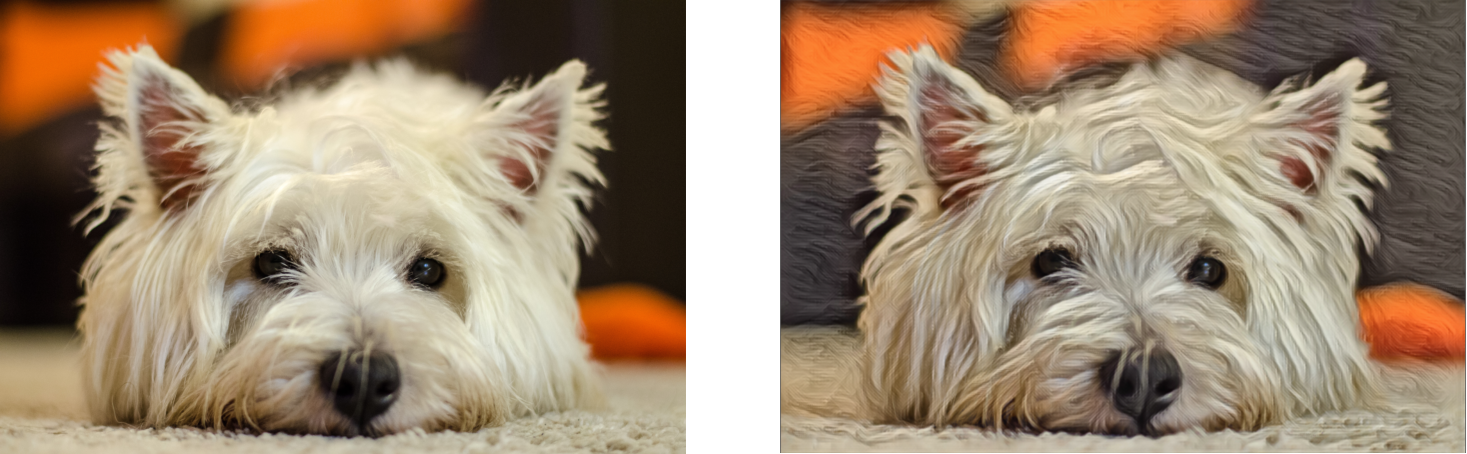

Two AI style presets: Fabulous Animals (top) and Painted Landscape (bottom)
Painter 2021 uses the latest and greatest machine learning (ML) technology from Apple to power your AI style experience.
It’s now easier to identify which brushes are compatible with which layers in the enhanced Brush Selector. As you hover over a brush variant, layer compatibility icons display for Default, Liquid Ink, Thick Paint, and Watercolor layers. You can also click any layer compatibility icon to search for all brushes compatible with that layer. Plus, you can use abbreviated search terms "d", "tp", "li", and "wc" in the Search bar to find respective Default, Thick Paint, Liquid Ink, and Watercolor brushes. In addition, the search term "gl" will instantly find all brushes that require Gel composite method for optimal look and feel.

Layer compatibility icons in the enhanced Brush Selector
You can now add new Default, Thick Paint, Watercolor, and Liquid Ink layers with a single click. You can also adjust Thick Paint visible depth in the Layers panel to dynamically control the depth of Thick Paint as you apply brushstrokes to the layer. Plus, the Layer options menu on the panel has been reorganized for quicker access and better alignment with the commands in the Layers menu. And you can right-click (Windows), or click with two fingers on the trackpad (macOS), the icons along the bottom of the panel to access handy contextual menus. For more information, see Displaying the Layers panel.
Painter 2021 provides other general refinements to layers workflow designed to help you focus on creativity. Watercolor layers have been improved, making it easier to merge two or more watercolor layers, convert default layers to watercolor, and flip watercolor layers. Plus, you can quickly unlock all layers, duplicate layer groups and canvas, retain the first layer name when merging a group, and use the Shift key to constrain movement while adjusting layers.
Painter 2021 introduces Clone Tinting and Thick Paint-compatible brush categories, featuring new brushes developed by Painter Masters. You can take advantage of brushes designed by a group of talented illustrators, fine artists, and photo artists who excel in their craft.
With a variety of brush types and shapes, Clone Tinting brushes pick up the currently selected color and mix it with your clone source. The Thick Paint-compatible brushes are designed to take full advantage of the depth, lighting, and shadows of Thick Paint technology. Plus, there are nine additional new or enhanced Thick Paint brushes. For more information about Clone Tinting, see Cloning brushes and controls. For more information about Thick Paint, see Thick Paint.
New and enhanced! Thick Paint workflow
Painter 2021 provides an optimized Thick Paint workflow, featuring reorganized brush control panels and property bar flyouts that give you quicker access to frequently used settings. You can instantly adjust how Thick Paint is applied to the brush, how the brush behaves, and how the paint interacts by using the revamped Media, Shape, and Wetness flyouts, reducing the need to open their respective panels.
What’s more, Thick Paint layer performance has been improved, making it easier to duplicate and flip layers, adjust visible depth, and preserve transparency when blocking in color. You can also lift the canvas, such as a photo, or convert a layer, such as brush marks on default layers, to Thick Paint, offering you a variety of powerful options to add visible depth to your artwork. For more information, see Thick Paint.
New! Thick Paint compatibility
Painter 2021 makes it easier to incorporate Thick Paint in your artwork. The improved brush compatibility offers a much greater variety of shapes, such as captured dabs and stencils, and media types, such as oily Sargent, chalks and pencils, buildup support for inks, crayons, and sumi-e, and so much more. In addition, the default appearance and interaction has been improved, making it quicker to make fine, non-destructive adjustments to the visible depth of Thick Paint brushstrokes. All in all, natural-looking mixed media and photo art with Painter is now more powerful and easier than ever.