Exploring the Document window

The document window is the area outside the canvas that is bordered by scroll bars and application controls.
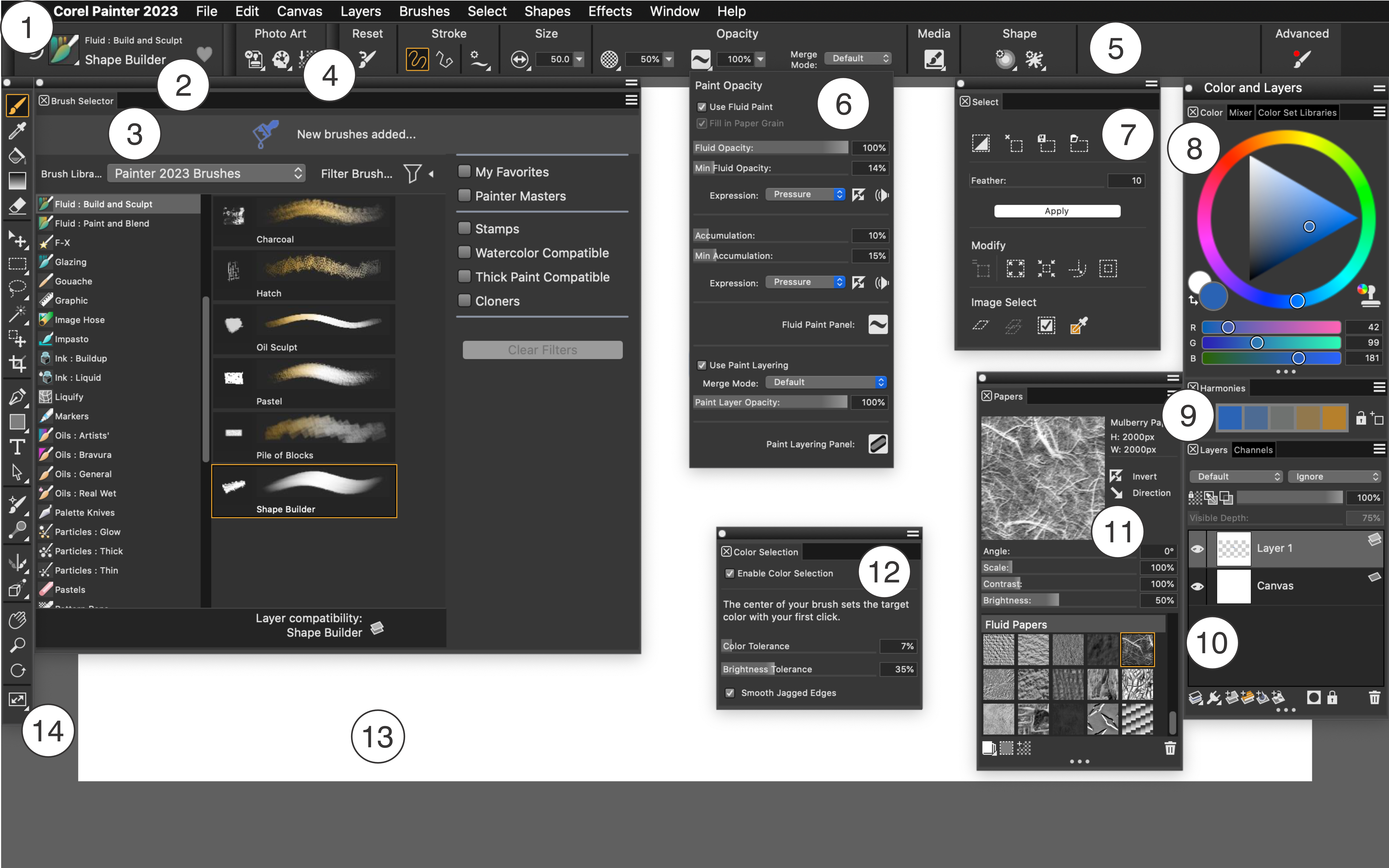
Circled numbers correspond to the numbers in the following table, which describes the main components of the application window.


Part
Description
1. Menu bar
Lets you access tools and features using pull-down menu options
2. Brush Selector bar
Lets you access the Brush Selector flyout. It also allows you to access the previously used brush variant and mark brushes as favorite.
3. Brush Selector flyout
Lets you choose a brush library, select a brush from a brush category, apply brush filters to show only the brushes you need, and browse additional brush packs that can complement your creative set of brushes. It also lets you instantly identify which brush variants are compatible with the Default, Liquid Ink, Thick Paint, and Watercolor layers. When you hover over a brush variant, eligible layer compatibility icons appear beside the brush name at the bottom of the Brush Selector.
4. Command bars
The command bars — File/Edit, Canvas, Photo Art — contain buttons and controls that are shortcuts to many commonly used menu commands.
5. Property bar
Displays commands that relate to the active tool or object. For example, when the Fill tool is active, the fill property bar displays commands for filling selected areas. Controls on the property bar are organized logically for ease of use. Group labels help you find, understand, and use commands quickly and efficiently.
6. Paint Opacity flyout
Lets you access the controls for fluid paint. You can adjust grain behavior, fluid opacity and accumulation levels, expression settings, and paint layering.
7. Select panel
Lets you access selection functions, such as contract, convert to shape, expand, feather, load, modify border, remove, revert, smooth, and save. You can also create selections from a layer or group, based on image luminance, current or specified color, and paper texture.
8. Color panel
Lets you select a color and view information about the selected color
9. Harmonies panel
Lets you use harmony rules to create color harmonies
10. Layers panel
Lets you manage the hierarchy of layers and includes controls for creating, selecting, hiding, locking, deleting, naming, and grouping layers
11. Papers panel
Lets you apply and edit paper textures as well as open and manage paper libraries, including the new Fluid Papers library
12. Color Selection panel
Lets you adjust the behavior of selection brushes when selecting color by painting
13. Canvas
The canvas is the rectangular work area inside the document window whose size determines the size of the image you create. The canvas acts as the image background and, unlike a layer, it is always locked.
14. Toolbox
Lets you access tools for creating, filling, and modifying an image

Was this page helpful? Send feedback.