Creating video files
Corel VideoStudio Pro lets you create video files of your project. You can choose from a wide variety of file formats and video settings. You can also output your projects to a 3D format.
Before rendering your entire project into a movie file, make sure you first save it as a Corel VideoStudio Pro project file (*.VSP) by clicking File > Save or Save As. This lets you return to your project at any time and make edits.
To create a video file of the entire project
1
Click the Create Video File button in the Share Options Panel.
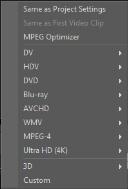
A pop-up menu appears that shows several options for creating a video file.
 
2
You can choose an output format or one of the following options:
*Same as First Video Clip Applies the settings of the first video clip in the Video Track.
*Same as Project Settings Applies the settings of the current project. You can access the current project settings by clicking Settings > Project Properties.
*MPEG Optimizer Lets you optimize the rendering of MPEG movies.
*Custom Lets you choose your own settings for creating the movie.
Note: To create a movie template, click Settings > Make Movie Templates Manager.
3
Enter a file name and click Save. The movie file is saved in the current library.
Press the Esc key to abort the rendering process.
Click the Pause/Play button on the progress bar to pause and resume the rendering process.
You can also enable playback while rendering or stop the preview to reduce rendering time.
To create a video file of the preview range
1
2
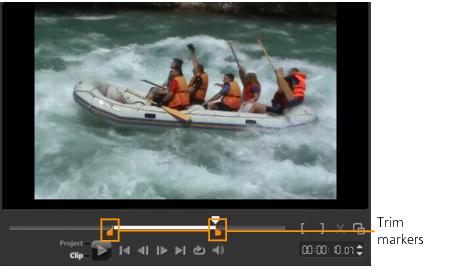
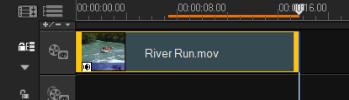
Select a preview range using the Trim Markers. You may also drag the triangle along the ruler then press [F3] and [F4] to mark the start and end points respectively.
Note: An orange line representing the selected range should appear on the Timeline ruler.
3
Click the Create Video File button in the Options Panel.
4
5
In the Create Video File dialog box, click Options.
6
In the Options dialog box, select Preview range and click OK.
7
Enter a file name and click Save.
Optimizing MPEG video settings
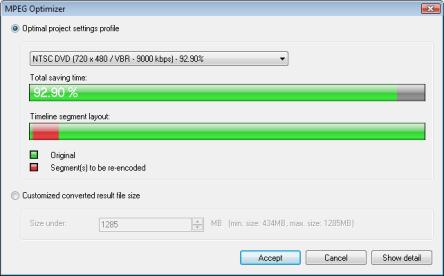
MPEG Optimizer makes creating and rendering movies in MPEG format a lot faster. It analyzes and finds the best MPEG settings or the Optimal project settings profile to use and maintains the quality of your project. As an additional feature, you can now specify the target file size of your output to comply with file size limitations for your desired output.
The MPEG Optimizer automatically detects changes in your project and renders out only the edited portions for faster rendering times.
To launch the MPEG Optimizer dialog box
*
Click Create Video File and select MPEG Optimizer from the pop-up menu.
Corel VideoStudio Pro displays the MPEG Optimizer dialog box where it shows the resulting file size of your project should you choose to apply the optimization.
To use MPEG Optimizer
1
In the Share Step Options Panel, click the Create Video File button and select MPEG Optimizer.
Note: MPEG Optimizer is automatically enabled when an MPEG movie template is selected. To stop showing the MPEG Optimizer dialog box when selecting MPEG movie templates, deselect Show MPEG Optimizer dialog box in the General tab of Preferences.
2
The MPEG Optimizer dialog box appears.
 
3
*Optimal project settings profile — Lets the program to determine the optimal project settings for your output.
*Customized converted result file size — Lets you enter your desired file size output. Video and Audio Settings automatically adjust to your specified file size.
4
Click Accept.
Creating 3D video files
Corel VideoStudio Pro lets you create 3D movies or convert regular 2D video into 3D video files. With the help of this feature and compatible 3D gadgets, you can enjoy 3D video popping out of your screen in just a few easy steps.
To create 3D video files
1
In the Share Step Options Panel, click the Create Video File button and select 3D.
2
The Create Video File dialog box appears.
3
Click Options to specify additional video file settings.
4
*Create 3D File — This option is available when you use tagged 3D media clips and no 2D filters or effects have been applied.
*3D Simulator — This option is available when you have 2D media clips in the Timeline that you can simulate as 3D. Enter a value in Depth to adjust the depth of the 3D video file.
5
*Anaglyph — Requires only the red and blue generic anaglyph 3D glasses to view 3D video without the need for special display monitors.
*Side-by-side — Requires polarized 3D glasses and a compatible polarized display monitor to view 3D video.
Note: You need a playback software that supports Side-by-side 3D video playback to view your 3D video files. For 3D TVs, 3D equipment and glasses are required.
6
The movie file is saved in the current library.
Creating HTML5 video files
Output your projects to the HTML5 format complete with hyperlinks and chapters. This video format is compatible with browsers that support the HTML5 technology like Google Chrome 12, Internet Explorer 9 and Mozilla Firefox 7 and later versions. It is also supported on the Safari browser for iPhone, iPad and iPod touch devices.
You can even share your HTML5 video projects online by saving them to Dropbox and Google Drive straight from Corel VideoStudio Pro.
You can only make HTML5 videos if you are working on an HTML5 project. For more information, see Creating new projects.
To create an HTML5 video folder
1
Click the Create HTML5 File button in the Share Step Options Panel. The Create HTML5 files dialog box appears.
2
In Folder path, browse for the folder where you want to save your HTML5 video folder.
3
Enter a name in Project folder name.
4
In Project dimensions, choose the screen resolution and aspect ratio from the drop-down list.
Note: Enable Flatten audio and background video if your browser can only support a single track for audio and video.
5
Click OK. The program renders your project and automatically opens the folder you specified.
Open Index.html in your browser to view your project.
To upload an HTML5 project to a cloud-based storage service
1
Click the Create HTML5 File button in the Share Step Options Panel. The Create HTML5 files dialog box appears.
2
In Folder path, browse for the local folder of your preferred cloud-based storage service.
3
4
Corel VideoStudio Pro currently supports direct HTML5 output to Dropbox and Google Drive. For Dropbox, save the files to the assigned Public folder.
For Google Drive, set the folder visibility options to Public on the web. Open the index.html file in Google Drive and select Preview. The web page opens in a new window. You can copy the URL address from the browser address bar and share the link.