Quick links to procedures on this page:
• |
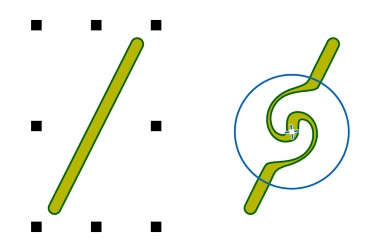
You can add twirl effects to objects. You can set the radius, speed, and direction of the twirl effects, and you can use the pressure of your digital pen to change the intensity of the twirl effect.
Adding a twirl effect
| To add a twirl effect to an object |  |
1. |
Select an object by using the Pick tool
 . .
|
2. |
In the toolbox, click the Twirl tool
 . .
|
3. |
Click the edge of the object, and hold down the mouse button until the twirl is the
size you want.
|
To position and reshape the twirl, you can drag while holding down the mouse button. |

|
Copyright 2012 Corel Corporation. All rights reserved.
 or the Clockwise twirl button
 .
.
 on the property bar.