Quick links to procedures on this page:
• |
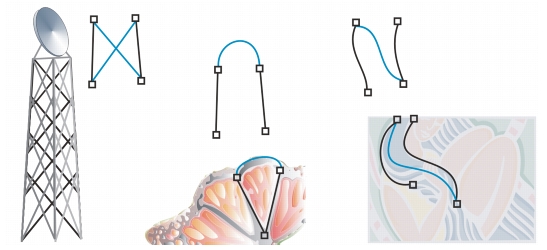
You can quickly create a closed object from line segments by selecting which lines you want to connect and the shape of the connecting line.
You can connect lines by using the closest nodes between lines. The connecting line can be either straight or curved. You can also connect lines by using their start and end nodes. The end node of the first selected line connects directly with the starting node of the closest selected line. The connected lines take on the properties of the first line selected.
Closing multiple line segments can be the starting point for more complex drawings.
| To close multiple line segments |  |
1. |
Hold down Shift, and select each object using the Pick tool
 . .
|
2. |
Click Arrange  Join curves. Join curves.
|
3. |
In the Join curves docker, choose one of the following options:
|
• |
Extend
|
• |
Chamfer
|
• |
Fillet
|
• |
Bezier curve
|
4. |
Click Apply.
|
|
You can also
|
|
|---|---|
|
Specify the gap tolerance
|
Type a value in the Gap tolerance box.
|
|
Specify the radius
|
Type a value in the Radius box.
|
 |
You can also connect the subpaths in a group of objects.
|
You can also select lines by marquee selecting. If the lines are marquee selected,
the properties from the bottom object on a layer are used. To see which object
is the bottom one, open the Object manager docker by clicking Window
Dockers Object manager.
|

|
Copyright 2012 Corel Corporation. All rights reserved.