Quick links to procedures on this page:
• |
• |
• |
• |
• |
• |
• |
• |
You can make objects appear three-dimensional by creating extrusions. You can create extrusions by projecting points from an object and joining them to create an illusion of three dimensions. CorelDRAW also lets you apply a vector extrusion to an object in a group.
After you create an extrusion, you can copy or clone its attributes to a selected object. Cloning and copying transfer the extrusion attributes of an extruded object to another. However, the cloned extrusion settings cannot be edited independently from the master.
You can change an extruded form by rotating it and rounding its corners.
CorelDRAW also lets you remove a vector extrusion.
Another way in which you can give an object a three-dimensional appearance is by applying a beveled edge to an extrusion. A bevel creates the illusion that an object’s extruded edges are cut on an angle. You can specify the angle and depth values of the bevel to control the effect.
You can create a bevel effect without extruding an object. For more information, see Creating bevel effects.
You can apply fills to an entire extrusion or only to the extruded surfaces. You can cover each surface individually with the fill, or you can drape the fill so that it blankets the entire object with no breaks to the pattern or texture.
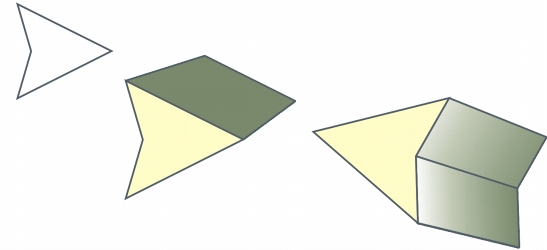
Left to right: a simple shape, the shape with an extruded fill of solid color, the shape with an extruded gradient fill and a rotation applied.
You can enhance extrusions by applying light sources. You can add up to three light sources to project toward the extruded object with varying intensity. When you no longer need light sources, you can remove them.
You can create a vector extrusion in which the lines of the extrusion converge at a vanishing point. The vanishing point of a vector extrusion can be copied to another object so that both objects appear to recede toward the same point.
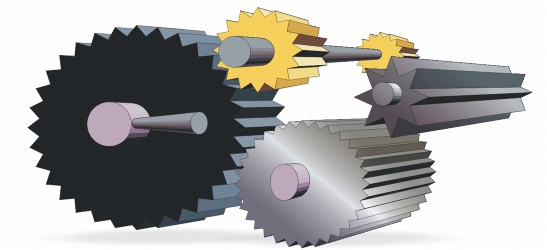
Extrusions with the same vanishing point
You can also give two extrusions different vanishing points.
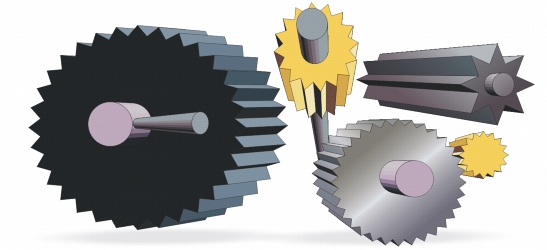

Extrusions with different vanishing points
| To create an extrusion |  |
1. |
Select an object using the Pick tool
 . .
|
2. |
In the toolbox, click the Extrude tool
 . .
|
3. |
Choose a preset from the Presets list box on the property bar.
|
4. |
Choose an extrusion type from the Extrusion type list box on the property bar.
|
5. |
Select an object.
|
6. |
Drag the object’s selection handles to set the direction and depth of the extrusion.
|
If you want to reset the extrusion, press Esc before releasing the mouse button. |
| To copy or clone an extrusion | |
1. |
Select the object you want to extrude.
|
2. |
Click Effects and click one of the following:
|
• |
Copy effect  Extrude from Extrude from
|
• |
Clone effect Extrude from
|
3. |
Click an object whose extrusion properties you want to copy.
|
 |
You can also use the Attributes eyedropper tool
 to copy an extrusion. For
more information, see To copy effects from one object to another. to copy an extrusion. For
more information, see To copy effects from one object to another.
|
| To change the form of a vector extrusion | |
| To remove a vector extrusion | |
1. |
Select an extruded object.
|
2. |
Click Effects Clear extrusion.
|
|
You can also remove a vector extrusion by clicking the Clear extrusion button
 on the property bar. on the property bar.
|
| To apply a fill to an extrusion | |
1. |
Select an extruded object with the Extrude tool
.
|
2. |
Click the Extrusion color button
 on the property bar. on the property bar.
|
3. |
Click one of the following buttons:
|
• |
Use object fill
 — applies the object’s fill to the extrusion — applies the object’s fill to the extrusion
|
• |
Use solid color
 — applies a solid color to the extrusion — applies a solid color to the extrusion
|
• |
Use color shading
 — applies a gradient fill to the extrusion — applies a gradient fill to the extrusion
|
|
You can apply an unbroken pattern or texture fill to an object by enabling the
Drape fills check box before you click the Use object fill button.
|
| To apply beveled edges to an extrusion | |
1. |
In the toolbox, click the Extrude tool
.
|
2. |
Select an extruded object.
|
3. |
Click the Extrusion bevels button
 on the property bar. on the property bar.
|
4. |
Enable the Use bevel check box.
|
5. |
Type a value in the Bevel depth box.
|
6. |
Type a value in the Bevel angle box.
|
|
You can also set the bevel depth and angle by using the Bevel interactive
display box
 below the Use bevel check box. below the Use bevel check box.
|
You can show only the bevel and hide the extrusion by enabling the Show
bevel only check box.
|
| To add light to an extrusion | |
1. |
Select an extruded object.
|
2. |
Click the Extrusion lighting button
 on the property bar. on the property bar.
|
3. |
Click any of the three Light buttons
 . .
|
The lights appear as numbered circles in the preview window. |
4. |
Drag the numbered circles in the Light intensity preview window to position the
lights.
|
If you want to create more realistic shading, enable the Use full color range check box. |
|
You can also
|
|
|---|---|
|
Adjust the intensity of a light source
|
Select a light in the Light intensity preview window, and move the Intensity slider.
|
|
Remove a light source
|
Click an active Light button.
|
| To change the vanishing point of an extrusion | |

|
Copyright 2012 Corel Corporation. All rights reserved.
 on the property bar. Drag the extrusion in the direction you want.
 . Drag a corner node along the outline of the rectangle or square.