Quick links to procedures on this page:
• |
• |
• |
• |
You can crop, split, and erase portions of objects.
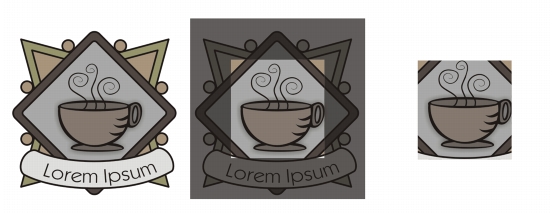
Cropping lets you quickly remove unwanted areas in objects and imported graphics, eliminating the need to ungroup objects, break linked groups apart, or convert objects to curves. You can crop vector objects and bitmaps.
Cropping objects
When cropping objects, you define a rectangular area (cropping area) that you want to keep. Object portions outside the cropping area are removed. You can specify the exact position and size of the cropping area, and you can rotate and resize it. You can also remove the cropping area.
You can crop only selected objects without affecting other objects in a drawing, or you can crop all objects on the drawing page. In either case, the affected text and shape objects are automatically converted to curves.
You can split a bitmap or vector object in two and reshape it by redrawing its path. You can split a closed object along a straight or jagged line. CorelDRAW lets you choose between splitting an object into two objects, or leaving it as one object composed of two or more subpaths. You can specify whether you want to close paths automatically or keep them open.
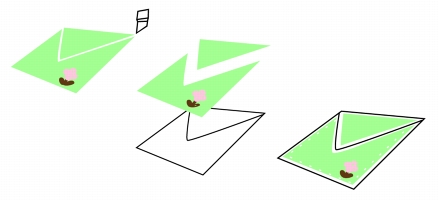
From left to right: The Knife tool creates two separate objects from the green rectangle. Then, the two objects are moved into an unfilled black object to create an envelope.
CorelDRAW lets you erase unwanted portions of bitmaps and vector objects. The Eraser tool works just like a pencil eraser, removing any part of the image over which you click and drag. Erasing automatically closes any affected paths and converts the object to curves. If you erase connecting lines, CorelDRAW creates subpaths rather than individual objects.
You can also delete virtual line segments, which are portions of objects that overlap each other. For example, you can delete a loop in a line that crosses over itself, or loops in line segments in which two or more objects overlap.
| To crop objects |  |
1. |
Select the objects that you want to crop.
|
If no objects on the drawing page are selected, all objects will be cropped. |
2. |
In the toolbox, click the Crop tool
 . .
|
3. |
Drag to define a cropping area.
|
4. |
Double-click inside the cropping area.
|
 |
Objects on locked, hidden, Grid, or Guides layers cannot be cropped. Also, you
cannot crop OLE and Internet objects, rollovers, or the content of PowerClip
objects.
|
During cropping, affected linked groups, such as contours, blends, and
extrusions, are automatically broken apart.
|
 |
You can move, rotate, and size the cropping area interactively as you would any
object. To move the cropping area, drag it to a new position. To size the
cropping area, drag any of its handles
 . To rotate the cropping area, click
inside, and drag a rotation handle . To rotate the cropping area, click
inside, and drag a rotation handle
 . .
|
You can remove the cropping area by pressing Esc.
|
| To split an object | |
1. |
In the toolbox, click the Knife tool
 . .
|
2. |
Position the Knife tool over the object’s outline where you want to start cutting.
|
The Knife tool snaps upright when positioned properly. |
3. |
Click the outline to start cutting.
|
4. |
Position the Knife tool over the object’s outline where you want to stop cutting,
and click again.
|
|
By default, objects are split into two objects and paths are automatically closed.
|
When you use the Knife tool on a selected object, the object becomes a curve
object.
|
| To erase portions of an object | |
1. |
Select an object.
|
2. |
In the toolbox, click the Eraser tool
 . .
|
3. |
Drag over the object.
|
|
When you erase portions of objects, any affected paths are automatically
closed.
|
|
You can erase straight lines by clicking where you want to start erasing, and
then clicking where you want to finish erasing. Press Ctrl if you want to
constrain the line’s angle.
|
You can also erase an area of a selected object by double-clicking the area with
the Eraser tool.
|
| To delete a virtual line segment | |
1. |
In the toolbox, click the Virtual segment delete tool
 . .
|
2. |
Move the pointer to the line segment you want to delete.
|
The Virtual segment delete tool snaps upright when positioned properly. |
3. |
Click the line segment.
|
If you want to delete multiple line segments at one time, click the pointer to drag a marquee around all line segments you want to delete. |
|
The Virtual segment delete tool does not work on linked groups such as drop
shadows, text, or images.
|
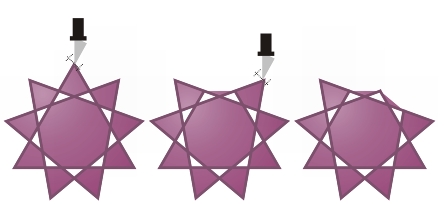
Deleting virtual line segments

|
Copyright 2012 Corel Corporation. All rights reserved.
 on the property bar.