Quick links to procedures on this page:
• |
• |
• |
CorelDRAW lets you simulate the effect of a calligraphic pen when you draw lines. Calligraphic lines vary in thickness according to the direction of the line and the angle of the pen nib. By default, calligraphic lines appear as closed shapes drawn with a pencil. You can control the thickness of a calligraphic line by changing the angle of the line you draw in relation to the calligraphic angle you choose. For example, when the line you draw is perpendicular to the calligraphic angle, the line is at the maximum thickness specified by the pen width. Lines drawn at the calligraphic angle, however, have little or no thickness.
A calligraphic pen allows you to draw lines of various thicknesses.
CorelDRAW lets you create pressure-sensitive lines which vary in thickness. You can create this effect using the mouse or a pressure-sensitive pen and graphics tablet. Both methods result in lines with curved edges and varying widths along a path. For information about using a pressure-sensitive pen on a graphics tablet, see the manufacturer’s instructions.

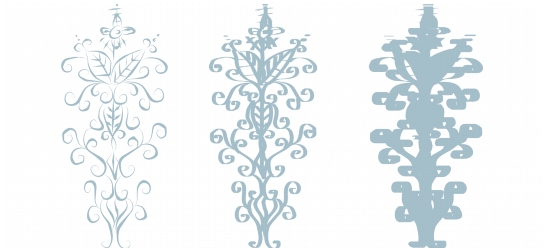
A flower drawn by using three different artistic media lines: calligraphic lines (left), pressure-sensitive lines of variable thickness (center), and flat preset lines (right).
CorelDRAW provides preset lines that let you create thick strokes in a variety of shapes. After you draw a calligraphic or preset line, you can apply a fill to it as you would to any other object. For information about applying fills, see Filling objects.
| To draw a calligraphic line |  |
1. |
In the toolbox, click the Artistic media tool
 . .
|
2. |
Click the Calligraphic button
 on the property bar. on the property bar.
|
3. |
Type a value in the Calligraphic angle box on the property bar.
|
4. |
Drag until the line is the shape you want.
|
 |
The width you set is the maximum line width. The angle of the line you draw
in relation to the calligraphic angle determines the line’s actual width.
|
| To draw a pressure-sensitive line | |
1. |
In the toolbox, click the Artistic media tool
.
|
2. |
Click the Pressure button
 on the property bar. on the property bar.
|
If you are using the mouse, press the Up arrow or Down arrow to simulate changes in pen pressure and change the width of the line. |
3. |
Drag until the line is the shape you want.
|
|
The width you set represents the line’s maximum width. The amount of
pressure you apply determines the line’s actual width.
|
| To draw a preset line | |
1. |
In the toolbox, click the Artistic media tool
.
|
2. |
Click the Preset button
 on the property bar. on the property bar.
|
3. |
Choose a preset line from the Preset stroke list box.
|
4. |
Drag until the line is the shape you want.
|
 |
You can also choose preset lines from the Artistic media docker. You can open
the Artistic media docker by clicking Window  Dockers Artistic media. Dockers Artistic media.
|

|
Copyright 2012 Corel Corporation. All rights reserved.
 button on the property bar.